Yes—you can make business cards in Excel. For a simple design that repeats on every card, use a rectangle sized to the finished card, add text boxes and a logo, group the pieces, then duplicate the design on a print-ready sheet. Excel is less reliable for matching perforated stock than Word or the stock maker’s template, so print a plain-paper test before using card stock.
What you need before you start
- Desktop Excel, which offers more page-setup controls than Excel for the web.
- A printer that supports the paper or card stock you plan to use.
- Plain card stock or the exact product number of compatible perforated business-card sheets.
- Your logo file and, if wanted, a QR-code image.
- A ruler for checking a test print.
Choose the paper before designing. Perforated sheets vary in margins, gaps, and card placement. Microsoft recommends choosing the stock’s product template before designing, since changing products later may mean redesigning the layout (Microsoft’s guidance on printing cards in a specific position).
As an Amazon Associate I earn from qualifying purchases.
Set up the worksheet and card size
A common US business-card size is 3.5 inches wide by 2 inches high, the standard size identified in Microsoft Publisher documentation (Microsoft’s business-card instructions). This is not universal: check the dimensions of your stock, particularly for international or nonstandard cards.
- Open a blank workbook in desktop Excel.
- Go to Page Layout > Size and choose the paper you will actually load, such as Letter (8.5 × 11 inches) in the US. Choose A4 if that is your paper size.
- Choose Page Layout > Orientation. Portrait is a practical starting point for a two-column by five-row arrangement on Letter paper.
- Open the Page Setup dialog launcher to set margins and review scaling and other print options. Excel’s Page Setup controls include paper size, orientation, margins, scaling, and page order (Microsoft Page Setup in Excel).
- Leave enough space for your printer’s nonprintable margins and the stock’s actual layout. Do not assume that ten nominal 3.5-by-2-inch rectangles will fit every ten-up sheet.
Create one card with shapes and text boxes
Draw and size the card background
- Choose Insert > Shapes > Rectangle, then draw a rough rectangle on the worksheet.
- Right-click it and choose Format Shape. In the size controls, enter a height of 2 inches and a width of 3.5 inches for a standard US card. Use your stock’s dimensions instead if they differ.
- Set the fill color or picture fill, and choose a subtle outline or No line.
Keep text and important artwork comfortably inside the card edges. Printer positioning can vary, and elements placed at the trim or perforation line may be clipped.
#1 Best Overall

- Quality Cardstock: Crafted from white cardstock paper for printer, these custom business cards offer professional quality, making your business cards easily customizable and personal
- Sure Feed Technology: Get a reliable output for your blank business cards, Sure Feed Technology technology that reduces tmisalignments and jams so every detail is correctly printed on your custom cards
- Smooth, Clean Edges: With multiple precise cuts, these white cardstock business cards provide clean, smooth edges for easy separation, so your custom business cards maintain a professional appearance
- Customization: Use Avery business cards templates to design and print business cards that can be customized at home using card paper with an inkjet printer
- Crisp, Smudge-Free Printing: Compatible with inkjet printers, the white cardstock paper delivers crisp, smudge-free prints for business cards, allowing you to customize your designs on both sides
Add and format the information
Use Insert > Text Box for flexible placement, or type directly into the rectangle. A useful card usually prioritizes the person’s name and company, followed by the details someone needs to make contact:
- Company name or logo
- Person’s name and job title
- Phone number and email address
- Website
- Optional address, social handle, or QR code
Microsoft lists the company name and logo, name and title, contact details, email, and website among the core business-card information (Microsoft’s business-card instructions). Use a readable typeface, clear contrast, consistent alignment, and concise details. For small text, prefer a plain background over a busy image.
- Select a text box and set its fill to No fill and its outline to No line.
- Set the font, size, alignment, and paragraph spacing, then position the text within the safe area.
- Use Shape Format > Align to line up related objects.
Insert a logo or QR code
For a logo, choose Insert > Pictures, select the image, preserve its aspect ratio while resizing, and place it inside the safe area. A vector logo or high-resolution PNG will generally hold up better than enlarging a small JPEG. For a QR code, insert it as an image and test it with a phone camera from a printed sample; its scan reliability depends on its printed size, contrast, and print quality.
Group the design
Select the background and every text box or image belonging to the card, then choose Shape Format > Group > Group. Grouping makes it easier to move or duplicate the card without shifting individual pieces.
Rank #2

- Printable cardstock lets you design and print your own personalized business cards
- Our most premium business cards feature Clean Edge(R) technology so that cards snap apart easily and leave behind the smoothest cleanest edges of any printable business card available
- Optimized for inkjet printers for jam & smudge-free performance guaranteed. Add crisp text and vibrant images to both sides of the professional business cards.
- Personalize your white business card with your own design or choose from thousands of free templates and designs on the Avery site
- Ideal for professional-quality printable business cards gift cards gift tags coupons or customer loyalty cards; use the back for photos maps and notes
Arrange repeated cards on one sheet
A Letter sheet can theoretically hold two columns by five rows of 3.5-by-2-inch cards, but that leaves no allowance in the arithmetic for gaps, margins, or printer limitations. Treat that arrangement as a starting point for plain paper, not a guarantee that a particular perforated product will fit.
- Select the grouped card and press Ctrl+C, then Ctrl+V to make a copy.
- Position the copy beside the first card. Select both cards and use Shape Format > Align > Align Top.
- Duplicate cards into the remaining positions. Use the alignment and distribution commands to keep rows and columns even.
- For perforated stock, use the manufacturer’s template dimensions and spacing rather than placing copies by eye.
- Select the entire contiguous sheet layout, then choose Page Layout > Print Area > Set Print Area. Separate, nonadjacent print areas print as separate pages, so keep the sheet within one contiguous area when possible (Microsoft: set or clear a print area).
Print at the intended size
- Open File > Print and check the selected printer, paper size, orientation, and preview.
- For fixed-size stock, use Actual size, 100%, or the stock maker’s specified setting. Avoid Fit Sheet on One Page or Shrink to Fit if they reduce the card dimensions. Excel can scale a worksheet by percentage or fit it to a specified number of pages; scaling can change the printed size (Microsoft: scale a worksheet; Microsoft: fit to one page in Excel).
- Confirm that the printer driver’s paper size matches Excel and the paper loaded. A mismatch can alter the printed result.
- In printer properties, select the appropriate cardstock or specialty-paper setting if available, and check that the printer supports the stock’s thickness. Follow the stock maker’s instructions if they specify a different scaling setting.
- Print one test page on plain paper. Hold it against the stock or place it behind the stock in front of a light to check alignment, then adjust and test again before using the final sheets.
If you want to save a PDF, use Excel’s File > Save As or Export options and choose PDF, where available in your version. Inspect the PDF’s page size and print preview before sending it to a printer; do not assume PDF export corrects a layout or scaling mismatch.
Use Excel cells instead of shapes: when it works
A cell-grid design can work for a simple, text-only card or a reusable internal template: adjust row heights and column widths, merge cells for each card, apply borders and fills, add text, copy the ranges, set the print area, and test at actual size.
Free tools Windows power users keep installed
One-click scans. No signup required.
It is harder to make precise than shapes. Row height is measured in points, but column width is based on character metrics rather than a direct physical unit. A column width that looks numerically like an inch value therefore does not guarantee an inch-wide printed card. For exact stock alignment, use a product template, shape-size controls, Word, or the manufacturer’s layout.
Rank #3

- Elevate Your Professional Image with Precision - Make a lasting impression in every business encounter with our Business Card Set. This comprehensive package includes 500 blank business cards in the standard 3.5x2-inch size and 50 printable perforated cards on 8.5x11-inch sheets. Each card, crafted from premium 250gsm cardstock, is a canvas for your professional identity.
- Versatility for Every Business Need - Meet the diverse demands of your business with our all-in-one solution. The set is perfect for quick, on-the-go exchanges, and printable perforated cards for a personalized touch. Whether you're a small business owner or a seasoned professional, this set caters to all your networking and promotional needs.
- Effortless Customization with Printable Perforated Cards - Unleash your creativity with the printable business cards included in this set. The perforated design ensures easy separation, allowing you to effortlessly showcase your brand, logo, and contact details. Ideal for business owners who value both convenience and customization.
- Premium Quality for a Professional Edge - Crafted from durable 250gsm cardstock, our Business Card Set guarantees a professional touch. The substantial weight of each card exudes quality and is compatible with both home and professional printers. Ensure your business cards leave a lasting impact with this premium paper.
- Complete Business Card Solution - Simplify your business card needs with our versatile and convenient Business Card Set. With 500 blank cards and 50 printable perforated cards, this set is perfect for entrepreneurs and professionals seeking a comprehensive solution. Elevate your networking and professional image with this premium business card collection, designed for success.
Make different cards from an Excel contact list
If employees or representatives need different details, use Excel to store the data and Word to lay out and merge the cards. A spreadsheet avoids manually editing every copy of the design.
- Create a table with one person per row and clear column headings, such as FirstName, LastName, Title, Company, Phone, Email, and Website.
- Keep the header row intact. Format phone numbers, ZIP codes, and any other values with significant leading zeros as text.
- Save and close the workbook.
- In Word, choose a business-card or label layout that matches your stock, then start a mail merge from Mailings and select the Excel workbook as the recipient list.
- Insert the merge fields into the first card, preview records, and complete the merge. Check that the first card’s layout propagates across the sheet.
- Print a test page before loading the final stock.
Word and manufacturer-specific layouts are better suited to stock-matched card pages, while Excel can supply the records. Microsoft’s template collection and business-card templates direct users toward Word and Publisher rather than an Excel business-card wizard (Microsoft’s pre-built templates; Microsoft Word business-card templates). Microsoft Q&A also describes a Word-and-Excel workflow (Microsoft Q&A: create a business card).
Choose the right tool for the job
| Tool | Best suited to | Trade-off |
|---|---|---|
| Excel | A quick design repeated identically, or a contact list used as data. | Works as a layout canvas, but is less convenient for exact stock alignment and variable cards. |
| Word with Excel mail merge | Different cards for multiple people, especially when Excel already holds the contact data. | Less convenient than a dedicated design tool for highly visual or complex artwork. |
| Avery Design & Print or another manufacturer’s template | Printing on a specific brand and product of perforated card stock. | Requires choosing the correct product and following its layout and print instructions. Avery offers printable and custom-printed business-card options (Avery business cards). |
| Publisher | An existing Publisher workflow or page-layout controls for multiple copies per sheet. | Microsoft says Publisher will no longer be supported after October 2026 and Microsoft 365 subscribers will no longer have access after that point (Microsoft Publisher business-card documentation). |
| Commercial printer | Large orders, bleed and trimming, specialty finishes, heavy stock, or demanding front-to-back registration. | Uses an outsourced production workflow instead of printing and aligning sheets yourself. |
Fix common print problems
The cards are the wrong size
Check that Excel, the printer driver, and the loaded paper all use the same size. Turn off unintended scaling, measure a card with a ruler, and print another plain-paper test. For fixed-size stock, follow the manufacturer’s instructions; Avery’s size resource says not to fit, shrink, or scale when printing its test resources (Avery printable card sizes).
The cards drift across the page or the last row is cut off
Common causes include the wrong product template, inaccurate margins or gaps, printer-feed variation, and a layout that extends beyond the printable area. Check the product number, compare the test print against the sheet, and adjust the layout as a whole rather than moving individual cards at random. If the final row falls outside the printable area, check the printer’s minimum margins and the stock’s spacing instead of forcing the layout to fit.
Rank #4
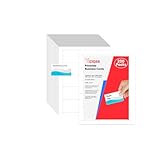
- Elevate Your Professional Image with Precision - Make a lasting impression in every business encounter with our Business Card Set. This comprehensive package includes 200 blank business cards in the standard 3.5x2-inch size and 20 printable perforated cards on 8.5x11-inch sheets. Each card, crafted from premium 250gsm cardstock, is a canvas for your professional identity.
- Versatility for Every Business Need - Meet the diverse demands of your business with our all-in-one solution. The set is perfect for quick, on-the-go exchanges, and printable perforated cards for a personalized touch. Whether you're a small business owner or a seasoned professional, this set caters to all your networking and promotional needs.
- Effortless Customization with Printable Perforated Cards - Unleash your creativity with the printable business cards included in this set. The perforated design ensures easy separation, allowing you to effortlessly showcase your brand, logo, and contact details. Ideal for business owners who value both convenience and customization.
- Premium Quality for a Professional Edge - Crafted from durable 250gsm cardstock, our Business Card Set guarantees a professional touch. The substantial weight of each card exudes quality and is compatible with both home and professional printers. Ensure your business cards leave a lasting impact with this premium paper.
- Complete Business Card Solution - Simplify your business card needs with our versatile and convenient Business Card Set. With 200 blank cards and 20 printable perforated cards, this set is perfect for entrepreneurs and professionals seeking a comprehensive solution. Elevate your networking and professional image with this premium business card collection, designed for success.
The design prints tiny or worksheet gridlines appear
If the preview shows a much smaller layout, inspect the scaling option in File > Print and the Page Setup scaling controls. If worksheet gridlines print, go to Page Layout > Sheet Options and clear Print under Gridlines. Use shape or cell borders only where you want a printed line.
Objects shift when you duplicate a card
Select all parts of the card and group them before copying. If the logo looks blurry, replace it with a vector or higher-resolution image rather than enlarging the original.
The front and back do not align
Test the back separately and mark the paper’s feed direction before printing more. Manual reinsertion and printer feed tolerances can shift the reverse side; Microsoft warns that desktop duplex pages may not align precisely, especially when paper must be reinserted by hand (Microsoft’s business-card instructions). For demanding two-sided registration, use a suitable duplex workflow or a commercial printer.
Quick wins for a faster PC:
Scan for outdated or missing drivers - takes under a minuteDriver Scan →Repair Windows errors before they cause bigger problemsFix Now →A print control is missing in Excel for the web
Some page-setup functions are unavailable in Excel for the web. Open the workbook in desktop Excel for the full set of printing controls (Microsoft: fit to one page in Excel).
Quick Recap
Product prices and availability are accurate as of the date/time indicated and are subject to change. Any price and availability information displayed on Amazon at the time of purchase will apply.




