A headless server is a computer running without a display, keyboard, or mouse. You access it over SSH from another machine. For streaming, this is actually the sane way to do it: you’re not wasting GPU power rendering a desktop, and you’re not tempted to reboot the machine for updates because you can’t just restart it casually. Everything is intentional.
A Cloud Alternative for 24/7 YouTube Streaming
StreamNeo lets you upload a prerecorded video and paste a YouTube stream key, then runs the stream in the cloud while your PC stays off. That makes it a practical alternative when the goal is keeping a YouTube channel live without maintaining a headless server.
StreamNeo checks stream health every 30 seconds and automatically restarts dropped streams. You avoid maintaining the FFmpeg process, systemd unit, credentials file, and custom health-check script for this workflow.
A 24-hour 720p/30fps trial is free with no card required at signup. Upload a real video, test the broadcast, and decide whether managed cloud streaming fits better than operating the Linux setup yourself.
Crashes, No Sound, or Screen Glitches?
Random freezes, missing sound and display glitches usually trace back to one bad driver. Find and replace yours safely.Free scan · under a minutePC Slower Than It Used to Be?
A free scan shows the junk files, broken settings and background clutter dragging Windows down - then fixes them in one click.Free scan · Windows 10 & 11#1 Best Overall

- 1 pack 4K HDMI dummy plug makes PC to enable GPU for doing tasks: high resolution GPU accelerated remote desktop and GPGPU operations like cryptocurrency mining rig, rendering and simulations
- Compact dummy HDMI headless ghost adapter emulates a high resolution up to 4K 60hz 4096x2160 display to make a computer run "headless" (without monitor, keyboard and mouse)
- Simple headless ghost display emulator HDMI connector is plug-and-play on Windows MAC OS Linux; no driver or external powered needed; solves the Apple OSX headless display issue
- Gold plated fit-headless HDMI dummy dongle ensures stable digital signal and unlocks the full potential of graphics card, ideal for twitch game streaming, OBS, VR, crypto mining and using Mac Mini server with screen sharing, etc.
- Small low-cost virtual screen display HDMI emulator plug is a must-have saver for server and colocation farms, SOHO and home servers and remote-deployed headless PCs
The downside is that headless streaming requires understanding FFmpeg, systemd, and Linux fundamentals. This isn’t a plug-and-play setup. But if you’re willing to spend two hours learning the pieces, you end up with something that actually works for 24+ hours without intervention.
The Headless Streaming Stack: FFmpeg, systemd, and Monitoring
Here’s how it works: FFmpeg is a command-line video tool that can read from almost anything (a file, a camera, an input device) and encode it to almost anything (a video file, an RTMP stream, an HTTP stream). To stream to YouTube, FFmpeg encodes your source and pushes it to YouTube’s RTMP ingest server.
The command looks like this:
ffmpeg -re -i input_video.mp4 -c:v libx264 -c:a aac
  -f flv rtmp://a.rtmp.youtube.com/live2/YOUR_STREAM_KEY
That’s telling FFmpeg: read the input file in real-time, encode the video with H.264, encode audio as AAC, and push it as an RTMP stream to YouTube using your stream key.
You can run this command directly on a headless server, and the stream starts. But there’s a problem: if the stream dies for any reason (network hiccup, temporary YouTube outage, whatever), the FFmpeg process exits and the stream is gone. Unless you’re monitoring and restarting it, the channel goes dark.
StreamNeo addresses this failure point by checking stream health every 30 seconds and automatically restarting a dropped stream while the broadcast continues in the cloud and your PC stays off.
Step 1: Create the FFmpeg Command
Build your FFmpeg command carefully. Testing it locally first (with output) helps you catch issues before running it headless.
For a simple looping video (one file that plays over and over):
ffmpeg -stream_loop -1 -re -i /path/to/video.mp4
  -c:v libx264 -preset veryfast -b:v 4500k
  -c:a aac -b:a 128k
  -f flv rtmp://a.rtmp.youtube.com/live2/STREAM_KEY_HERE
The -stream_loop -1 tells FFmpeg to loop the file indefinitely. The preset is veryfast because even on a server, you want to balance encoding quality with CPU usage. The bitrates (4500k for video, 128k for audio) are sensible defaults for 1080p streaming.
Rank #2

- Will work with any graphics card that has HDMI output. No incompatibility problems, if regular LCD monitor works with particular output then these dummy plugs will also work with confidence as they act exactly the same as real LCD monitor.
- Works with Windows, OSX, Linux and just about everything else Ultra-compact, low profile design
- No drivers, no configuration, no power cable - just set and forget
- Allows for high resolution, GPU accelerated remote desktop.
- Acts as a dummy plug for use with GPU tasks such as crypto currency mining Works great with Virtual Desktop (HDMI2K,4K,DVI,DP,MINIDP)HEADLESS,(HDMI ,VGA,DVI)PASS-THROUGH EDID PLEASE ENTER THE STORE TO PURCHASE
Test this locally first with a short video file. Make sure the audio and video sync up, the quality looks reasonable, and FFmpeg doesn’t crash after 30 minutes of looping.
Step 2: Store the Stream Key Safely
Never put your YouTube stream key in a script that’s version-controlled or readable by other users. Use environment variables or a separate credentials file with restricted permissions.
Create a file like /etc/streamneo-creds (or any path) with only your stream key inside:
YOUTUBE_STREAM_KEY=your_actual_stream_key_here
Then restrict it to root-only read:
sudo chmod 600 /etc/streamneo-creds
In your FFmpeg script, source the file before running FFmpeg:
Recommended Free Tools
source /etc/streamneo-creds
ffmpeg ... rtmp://a.rtmp.youtube.com/live2/$YOUTUBE_STREAM_KEY
Step 3: Wrap FFmpeg in a systemd Service
systemd is the service manager on modern Linux. It handles starting, stopping, and restarting services. Create a service file that runs FFmpeg on boot and restarts it if it crashes.
Create /etc/systemd/system/youtube-stream.service:
[Unit]
Description=YouTube 24/7 Stream
After=network.target

[Service]
Type=simple
User=streamuser
EnvironmentFile=/etc/streamneo-creds
ExecStart=/usr/bin/ffmpeg -stream_loop -1 -re
  -i /path/to/video.mp4
  -c:v libx264 -preset veryfast -b:v 4500k
  -c:a aac -b:a 128k
  -f flv rtmp://a.rtmp.youtube.com/live2/$YOUTUBE_STREAM_KEY
Restart=always
RestartSec=5
StandardOutput=journal
StandardError=journal

[Install]
WantedBy=multi-user.target
This tells systemd to start the service on boot, run it under a dedicated user, source the credentials file, and restart it if it crashes. The RestartSec=5 means wait 5 seconds between restart attempts (so a YouTube server hiccup doesn’t spam restart attempts).
Enable and start the service:
sudo systemctl daemon-reload
sudo systemctl enable youtube-stream
sudo systemctl start youtube-stream
Check the status:
sudo systemctl status youtube-stream
journalctl -u youtube-stream -f
The journalctl command shows you logs from the service, which is helpful for debugging if the stream isn’t starting.
Step 4: Monitor the Stream and Alert on Failure
Just because systemd restarts the process doesn’t mean the stream is healthy. The process could be running but failing silently, or the connection to YouTube could be unstable. Set up monitoring.
Quick wins for a faster PC:
Clear out junk files and repair common Windows errorsFree Scan →Fix the driver behind crashes, sound loss and screen glitchesFind Drivers →Repair Windows errors before they cause bigger problemsFix Now →Rank #3
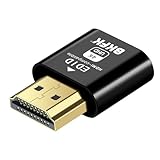
- 4K@60Hz HDR VIRTUAL DISPLAY: This BKFK HDMI EDID emulator uses EDID emulation to keep a virtual screen active without a physical monitor. It supports up to 3840×2160 at 60Hz (4:2:0) and 1920×1080 at 120Hz, helping enable smoother hardware-accelerated remote desktop, video editing, rendering, and development workflows. Available display modes may vary by GPU and operating system.
- BUILT FOR HEADLESS PC SETUPS: This dummy HDMI plug is designed for remote-deployed PCs, home servers, SOHO systems, colocation environments, and mini servers. It provides a persistent display target for remote management without keeping a physical monitor connected, helping reduce desk space, monitor power use, and the cost of maintaining dedicated displays.
- PLUG & PLAY HDMI EMULATOR: No drivers, software, external power supply, or configuration utility required. Simply insert it into an HDMI output and select a supported resolution in your operating system. Ideal for unattended PCs, remote access, screen sharing, simulations, workstation rendering, and other headless applications. Not an HDMI transmitter or receiver.
- ALUMINUM HOUSING WITH STATUS LED: The compact BKFK HDMI dongle features a durable aluminum shell for improved heat dissipation and everyday wear resistance. An integrated LED provides a quick visual indication of connection status, while the low-profile design is suitable for long-term use with home labs, server racks, workstations, and remotely managed computers.
- WIDE SYSTEM COMPATIBILITY: Works with most HDMI-equipped desktops, laptops, mini PCs, and discrete graphics cards running Windows, macOS, Linux, and other common operating systems. Suitable for remote desktop, VNC, game streaming, screen sharing, VR setups, home servers, and virtual display workflows. Connect to an HDMI output for use.
StreamNeo checks stream health every 30 seconds and automatically restarts dropped streams while the broadcast runs in the cloud and your PC stays off, addressing the gap between a running systemd process and a genuinely healthy YouTube stream.
StreamNeo provides a simpler monitoring path for this use case: it checks stream health every 30 seconds and automatically restarts a dropped stream while the broadcast continues in the cloud.
Write a simple health-check script that tests whether the stream is live by checking YouTube’s API:
#./bin/bash
CHANNEL_ID="your_youtube_channel_id"
API_KEY="your_youtube_data_api_key"

# Get stream status
STATUS=$(curl -s "https://www.googleapis.com/youtube/v3/search?part=snippet&forMine=true&type=video&eventType=live&key=$API_KEY"
  | grep -o '"isLiveContent":true' | wc -l)

if [ "$STATUS" -eq 0 ]; then
  echo "Stream is offline. Restarting service..."
  sudo systemctl restart youtube-stream
  # Send alert email here if needed
fi
Schedule this to run every 5 minutes with cron:
*/5 * * * * /path/to/health-check.sh
Step 5: Handle Disk Space and Logs
FFmpeg writes logs if you capture its output. On a long-running stream, logs can grow quickly. Configure systemd to limit journal size, or redirect FFmpeg output to a rotating log file.
What’s actually slowing this PC down?
Pick the symptom - the matching free tool is one click away.
In the service file, StandardOutput=journal sends logs to systemd’s journal, which has built-in rotation. Alternatively, use logrotate to manage FFmpeg’s direct logs.
Also, make sure /tmp and the partition where FFmpeg reads/writes has plenty of free space. On a 24/7 stream, disk errors can cause failures.
Step 6: Plan for Upstream Issues
Even with perfect monitoring and a perfect setup, YouTube can have outages. Your ISP can have outages. Your server can lose DNS for a moment. FFmpeg will retry, but after a certain number of failed connection attempts, it gives up.
Consider wrapping FFmpeg in a watchdog script that:
1. Checks if the FFmpeg process is running
2. Checks if YouTube’s status page indicates an outage
3. Restarts FFmpeg if the process crashed but YouTube is healthy
4. Waits for YouTube to recover if YouTube is down (no point restarting)
Rank #4

- Function:4K HDR HDMI dummy plug Can enable the PC to enable the GPU to create a virtual display to perform tasks,Simulate high resolution for remote control,Up to 4K@60HZ, compatible with 1080P-60HZ/120HZ, etc.
- Advantage : Makes computer run "headless",low cost to replace expensive real display, energy saving,environmental.protection. is server and colocation farms, SOHO and home servers and remote-deployed headless PCs best solutio.
- Easy to use :Plug & Play-No drivers,no software, no powered,Support hot swap. Low power consumption. Guaranteed stability for cryptocurrency mining, video rendering, and simulation mirroring.
- Compatibility: Applicable to any discrete graphics card, notebook with HDMI output,Support PC Windows, Mac Mini OSX, linux, and other operating systems. ideal for game streaming, VR,and the use of Mini server with screen sharing, etc.
- Craftsmanship: Gold-plated HDMI interface guarantees complete signal transmission, provides 2 years unconditional warranty, if you have any questions, please feel free to contact us, we will reply in the shortest time.
This is more complex, but it’s what production services do.
The Alternative: Skip This Entirely
This whole setup works, but it requires Linux knowledge, familiarity with FFmpeg, and comfort with systemd. If any of that makes you uncomfortable, you shouldn’t be doing it. Configuration mistakes can cause the stream to fail silently, and troubleshooting takes time.
StreamNeo offers a 24-hour 720p/30fps trial free with no card at signup, so you can upload a real video and test the always-on YouTube workflow before committing to manual server maintenance.
StreamNeo removes all of this. You upload a video once to the service, paste your YouTube stream key, and the stream runs from cloud infrastructure. Automatic monitoring, automatic restart on failure, no SSH needed, no systemd service files, no FFmpeg configuration. If the stream drops, the service restarts it by itself. Your machine stays off the whole time. There is a free 24-hour trial and no card required, so you can test it with a real file and see the difference between managing this manually and having it managed for you.
The Tool Desk
Outbyte Driver Updater FREEScan for outdated or missing drivers - takes under a minuteDriver Scan →Outbyte PC Repair FREEClear out junk files and repair common Windows errorsFree Scan →The Linux Way: When Headless Streaming Makes Sense
Headless server streaming is worth doing if:
– You already have a Linux server running other workloads
– You’re comfortable with the command line and service management
– You want complete control over the encoding parameters
– You’re streaming content that requires custom preprocessing
For pure 24/7 video looping, it’s overkill. For streaming a live camera feed or a custom-generated video source, it’s appropriate.
Monitoring Checklist: What to Check Every Week
If you do set this up:
– Is the service still running? (systemctl status youtube-stream)
– Is the stream alive on YouTube?
– Are there any error patterns in the logs? (journalctl -u youtube-stream --since "1 day ago")
– Is the disk space still healthy? (df -h)
– Has the CPU load been stable, or is there a trend upward? (sign of a memory leak)
A working headless setup is low-touch, but it’s not no-touch. Check it weekly.
Quick Recap
Product prices and availability are accurate as of the date/time indicated and are subject to change. Any price and availability information displayed on Amazon at the time of purchase will apply.




