The Tool Desk
Outbyte Driver Updater FREEFix the driver behind crashes, sound loss and screen glitchesFind Drivers →Outbyte PC Repair FREEClear out junk files and repair common Windows errorsFree Scan →Check the exact transfer in the sender’s UPI app, then compare its status and transaction details with the recipient’s bank account record. A debit from your account alone does not prove the recipient was credited. If you were debited and the recipient has no credit, report that specific transaction through the app or your bank and keep the complaint reference.
Check the transaction in the sender’s UPI app
- Open the app used to send the money and go to its transaction history. Select the exact payment. Menu names vary by app and version; BHIM’s official guidance describes checking transaction history and status (NPCI BHIM app information).
- Read the status shown for that transaction—such as pending, successful, failed or declined. Treat an app notification or bank SMS as a useful confirmation signal, but check the transaction record itself. NPCI describes checking the status on the BHIM screen and receiving a bank SMS (NPCI UPI FAQ).
- Compare the payee name or UPI ID, amount, date and time, and transaction ID with the payment you intended to make. NPCI’s UPI Help guidance lists these transaction details for app screens and complaints (NPCI UPI Help guidelines).
- Ask the recipient to check the account record for the bank account linked to the UPI payment, not just their notification history. Compare the transaction details you have with the recipient and avoid treating a sender-side debit as proof of beneficiary credit.
What the different statuses mean
| Status or situation | What it establishes | What to do |
|---|---|---|
| Pending | The transfer is not confirmed as complete in the app. NPCI describes a case where the sender is debited while beneficiary-bank processing delays credit. | Keep the transaction details, check the recipient’s account record, and report the transfer if it remains unresolved. NPCI’s FAQ says such a pending case may take time at the beneficiary bank and gives 48 hours as its guidance; this is not a replacement for the RBI reversal rule. |
| Successful in the sender’s app | The app displays a successful sender-side status; that alone does not settle a disagreement about whether the intended recipient’s account was credited. | Recheck the payee and transaction ID, and have the recipient check their receiving account record. If the records conflict, report the exact transaction. |
| Failed or declined | The app reports a failed transaction. If the account was debited, the refund still needs to be verified in the account record. | Check for the refund and contact the bank if it has not arrived. NPCI’s FAQ advises contacting the bank if a failed debit has not been refunded within an hour; that FAQ guidance is not a guarantee that every dispute will resolve on that schedule. |
| Merchant payment with no confirmation at the merchant location | This is a different case from a person-to-person transfer where the beneficiary account was not credited. | Use the separate merchant-payment timeline described in the RBI circular: up to T+5 days for reversal when an account was debited but confirmation did not reach the merchant location. |
NPCI’s FAQ also describes a pending, debited-but-not-credited scenario and says the funds should reach the recipient in 48 hours after settlement at the beneficiary bank. The FAQ does not state a publication date. Treat that as NPCI’s guidance for the described pending case, not as a guarantee or a substitute for the regulatory timeline (NPCI UPI FAQ).
Report a debit with no credit
- From the transaction’s detail screen, use the app’s issue, report, help or UPI grievance option if available. Choose the reason that best matches the facts, such as beneficiary account not credited. Labels and screen flows vary by app.
- Save the complaint or service-request reference and check its status in the app. NPCI says users can raise or check a UPI grievance through a participating bank’s UPI app (NPCI UPI FAQ). BHIM also provides transaction-history and issue-reporting guidance (NPCI BHIM app information).
- If the app route does not resolve the issue, contact the sending bank through a trusted channel and provide the transaction details and complaint reference. NPCI advises contacting the bank for unconfirmed or unreversed debits.
- Keep the sender’s account record showing the debit or refund, the recipient’s account-record check, the transaction details, and the complaint reference. If the complaint remains unresolved after the applicable redress process, the RBI circular points to the RBI Integrated Ombudsman Scheme; check RBI’s official site for the current escalation procedure.
Details to have ready
- Payee name and payee UPI ID
- Transaction ID, amount, date and time
- Payer UPI ID, if shown in the app
- The status displayed and whether the sender’s account was debited
- The complaint reference and any relevant account-record entries
NPCI’s UPI Help guidelines illustrate these transaction fields and a complaint reason for a beneficiary account not credited on a pending or timeout transaction. The guide depicts app-specific flows; it does not mean every app uses the same labels or screens (NPCI UPI Help guidelines).
Know the RBI reversal timeline for a person-to-person transfer
For a UPI funds transfer where the sender is debited but the beneficiary is not credited, the Reserve Bank of India’s 2019 framework requires the beneficiary bank to automatically reverse the transaction by T+1 day if it cannot credit the account. It specifies compensation of ₹100 per day for delay beyond T+1. This rule concerns a funds transfer to an account; do not apply the separate T+5-day merchant-payment rule to a person-to-person transfer (RBI failed-transaction circular, September 20, 2019).
PC Slower Than It Used to Be?
A free scan shows the junk files, broken settings and background clutter dragging Windows down - then fixes them in one click.Free scan · Windows 10 & 11Crashes, No Sound, or Screen Glitches?
Random freezes, missing sound and display glitches usually trace back to one bad driver. Find and replace yours safely.Free scan · under a minute#1 Best Overall

- All-in-One NFC & QR Code Multi-Payment Stand: Enable your customers to pay instantly with a simple tap or QR scan. This versatile stand supports Venmo, PayPal, Cash, Zelle, Cash App, and more, providing a professional contactless payment solution for counters, cafés, restaurants, retail stores, and pop-up shops
- No App or Fees – Easy Contactless Payments: Customers can complete payments directly via NFC or QR code without downloading apps, creating accounts, or paying subscription fees. This Scan to Pay sign ensures fast, seamless, and secure transactions, enhancing convenience and customer satisfaction
- No App or Fees – Easy Contactless Payments: Customers can complete payments directly via NFC or QR code without downloading apps, creating accounts, or paying subscription fees. This Scan to Pay sign ensures fast, seamless, and secure transactions, enhancing convenience and customer satisfaction
- Acrylic Desktop Stand: Crafted from high-quality acrylic, this NFC QR code payment stand is compact, self-standing, and perfect for counters, desks, or reception areas. Its sturdy tabletop design ensures visibility and professional presentation while customers tap or scan to pay effortlessly
- Acrylic Desktop Stand: Crafted from high-quality acrylic, this NFC QR code payment stand is compact, self-standing, and perfect for counters, desks, or reception areas. Its sturdy tabletop design ensures visibility and professional presentation while customers tap or scan to pay effortlessly
Protect your UPI account while seeking help
Do not share your UPI PIN with anyone. NPCI states, “Please do not share your UPI-PIN with anyone,” and says bank customer support will never ask for it. Check the payment in the official app and contact support through the app or your bank’s trusted channel (NPCI UPI FAQ).
Quick Recap
Best Value
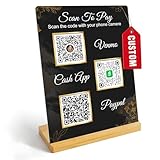
- Create a cleaner checkout experience with a custom scan-to-pay sign that keeps your payment QR codes in one visible tabletop display for faster customer action.
- Personalize the title, app labels and bottom text to match your business, event or booth setup while keeping the payment options easy to identify at a glance.
- Designed for counters, salon desks, pop-up markets, bakeries, cafes and small business front desks where customers need a simple scan-and-pay prompt.
- Choose from multiple size options to fit compact counters or larger display areas, and pair the sign with stand for stable tabletop presentation.
- High-definition printing, this custom QR code plaque is designed for sharp details and reliable scanning. The smooth, scratch-resistant surface keeps your sign looking clean and professional.
Rank #4
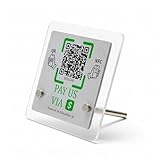
- 【Dual-Payment Technology: QR Code & NFC Tap】Customers can pay instantly by scanning the high-resolution QR code or simply tapping their NFC-enabled phones. No app download required—compatible with all smartphones.
- 【No Monthly Fees & Unlimited Scans】One-time purchase, lifetime use. No hidden subscriptions or per-scan charges. Enjoy unlimited payment scans forever.
- 【Acrylic Design】Crafted with frosted acrylic stand, it adds a professional touch to your counter while securely holding your payment tag. Size: 10x10CM.
- 【Easy Setup】You don't need to download any App, you can easily set up the stand on our website, and it can be set up in a few minutes. And our backend provides the service of changing the settings at any time.
- 【Data Statistics】You can view the data of a single stand or multiple stands through your backend. If you have multiple stores, you can also view the data of a single store or multiple stores. This makes it easier for you to analyze data and formulate business strategies.
Rank #3

- [ VERSATILE DISPLAY ] - The Skywin QR Code Business Social Media Sign Stand is an elegant acrylic stand, perfect for showcasing your social media app, custom business cards, cash app, or any acrylic signs in your home office, hair salon decor, beauty salon decor, or for small business shop space for their google review tap card. A must-have for a guest room essentials
- [ PROFESSIONAL APPEAL ] - Enhance your cute office decor with a sleek, modern touch. The QR Code Business Social Media Sign Stand adds a polished look to your desk or reception area, making it an essential item for a well-organized and professional esthetician decor environment. Best for guest room must-haves!
- [ DURABLE DESIGN ] - Crafted from high-quality materials, the Skywin QR Code Business Social Media Sign Stand offers a sturdy base for your display needs, ensuring your acrylic sign holders remain stable and visible. [ IMPORTANT REMINDER] - Inside the box, you will receive the manual QR code to scan.
- [ DIMENSION OF THE PLAQUE ] - The dimensions of this Skywin QR Code Business Social Media Icon Sign Stand are 7.9 x 7.9 inches (upper part) and 7.1 x 2.3 inches (lower part). The package includes some of the known social media icons and cash app icons with a matching customized mirror border base to hold it.
- [ CUSTOMIZABLE AESTHETIC ] - The white acrylic material of the Skywin QR Code Business Social Media Sign Stand complements any decor, from simple office decor to minimalist home office decor, providing a subtle yet stylish backdrop whether white, black, pink or rose gold for your custom signs and display stands
Rank #2

- ✅ ALL-IN-ONE SCAN TO PAY QR CODE SIGN:Accept payments effortlessly with our custom QR code stand! Perfect for Venmo, Cash App, PayPal, Zelle, or any payment app you use. Just add your QR codes, set it up, and let customers scan and pay in seconds—no more fumbling with cash or card readers at your small business, vendor booth, salon, or shop.
- ✅ HIGH-QUALITY ACRYLIC & STURDY WOODEN STAND:Made with premium, clear acrylic (thick and durable, no easy scratches) and a solid wooden base, this QR payment sign stays stable on your countertop, table, or checkout desk. The smooth, glossy finish keeps your QR codes clear and scannable, even with daily use at busy markets or shops.
- ✅ FULLY CUSTOMIZABLE TO YOUR NEEDS:Upload your own QR codes, choose your background design, and add custom text to make your payment sign unique. Whether you need 1, 2, 3 or 4 QR codes for payments, social media, or Wi-Fi, we’ll print it exactly how you want—great for branding your small business or side hustle.
- ✅ PERFECT FOR EVERY BUSINESS & EVENT:Ideal for small businesses, pop-up shops, craft fairs, farmers markets, food trucks, salons, boutiques, and even yard sales. Whether you’re a vendor, freelancer, or local shop owner, this QR code stand makes contactless payments easy for you and your customers.
- ✅ EASY TO USE & LONG-LASTING:Setting up your custom QR code sign is simple: just remove the protective film, place it in the wooden stand, and start accepting payments. The high-quality print won’t fade, so your QR codes stay scannable for years. If you have any questions about customization or your order, our support team is here to help!
Product prices and availability are accurate as of the date/time indicated and are subject to change. Any price and availability information displayed on Amazon at the time of purchase will apply.




