What’s actually slowing this PC down?
Pick the symptom - the matching free tool is one click away.
To read a CHEP invoice, first confirm the account, invoice date and period, due date, and reference details. Then reconcile equipment movements separately from monetary charges, checking charge quantities and rates against transaction records. Invoice layouts and payment terms vary by country and customer account, so use your own invoice and agreed terms—not another region’s example—as the authority.
1. Confirm the account and invoice details
Before reviewing amounts, make sure the invoice belongs to the right account and billing period. Check the account information in the address section, named invoice contact, invoice date, due date, and any purchase-order or customer reference. These details help distinguish a genuine billing difference from an invoice associated with another account, period, or internal reference.
CHEP’s Australian invoice explainer says payment is generally due seven days from the invoice date. That is regional guidance, not a universal CHEP term: follow the due date printed on your invoice and the terms agreed for your account. CHEP’s Australian explainer is available at How to Read Your Invoice.
2. Read equipment movements before judging the amount
An equipment balance is a count of equipment, not a monetary charge. In CHEP’s Australian explainer, the movement summary is organized by equipment type and shows how the balance changes across the invoice period. It describes the closing balance as the opening balance plus Total In, Total Out, and adjustments. The opening balance is the previous invoice’s closing equipment balance.
#1 Best Overall

- Our Most Advanced Receipt Scanner — AI-ready scans²; color touchscreen; fast double-sided scanning at up to 45 ppm⁵; 100-sheet Auto Document Feeder; Wi-Fi
- Epson ScanSmart¹ AI PRO Technology — Intelligently extracts and converts your receipts and documents into smart, AI-ready data², optimized for use by the latest AI applications
- Easy Financial Integration — Turn receipts and invoices into categorized data that syncs directly with QuickBooks, TurboTax, Excel and more³
- Large 4.3" Color Touchscreen — For ScanWay computer-free scanning directly to email accounts⁷, cloud storage⁶ or connected USB flash drives⁸
- 12x Faster Double-Sided Scanning⁴ — Single-step technology quickly captures both sides of a document in a single pass at up to 45 ppm⁵
Compare the summary with the account’s transaction records. A summary gives an overview; by itself, it does not establish that a movement is missing or incorrect. Check that you are comparing the same equipment type, period, and movement category before treating a difference as an error.
Understand the movement categories
- Opening balance: the equipment balance carried forward from the prior invoice’s closing balance.
- Total In and Total Out: summarized equipment movements during the period.
- Adjustments: movements shown separately from the totals. The Australian explainer gives examples such as administrative movements, excess movements, equipment compensations, and deposit-refund equipment clearing. Your invoice may not include every category.
- Closing balance: the resulting equipment balance after the opening balance, movements, and adjustments are accounted for.
These labels and examples describe CHEP’s Australian materials; use the categories and layout shown on your own regional invoice.
Rank #2

- FAST SPEEDS - Scans color and black and white documents a blazing speed up to 16ppm (1). Color scanning won’t slow you down as the color scan speed is the same as the black and white scan speed.
- ULTRA COMPACT – At less than 1 foot in length and only about 1. 5lbs in weight you can fit this device virtually anywhere (a bag, a purse, even a pocket).
- READY WHENEVER YOU ARE – The DS-640 mobile scanner is powered via an included micro USB 3. 0 cable allowing you to use it even where there is no outlet available. Plug it into you PC or laptop and you are ready to scan.
- WORKS YOUR WAY – Use the Brother free iPrint&Scan desktop app for scanning to multiple “Scan-to” destinations like PC, Network, cloud services, Email and OCR. (2) Supports Windows, Mac and Linux and TWAIN/WIA for PC/ICA for Mac/SANE drivers. (3)
- OPTIMIZE IMAGES AND TEXT – Automatic color detection/adjustment, image rotation (PC only), bleed through prevention/background removal, text enhancement, color drop to enhance scans. Software suite includes document management and OCR software. (4)
3. Check the charge summary line by line
Once the equipment activity makes sense, review the monetary charges. CHEP’s Australian explainer groups charges by equipment code and charge type. Examples include daily hire, issue, transport, and relocation fees. For each line, compare the quantity, rate, and total; for equipment days, the explainer describes the total as quantity multiplied by rate.
If the summary shows a fee but not the activity behind its quantity, inspect the transaction page or listing for supporting entries. Keep the invoice period and equipment code in view so that a rate or activity from another period is not accidentally used for comparison. The applicable rates and terms are account-specific; the public regional guide does not establish a single rate schedule for all customers.
Free tools Windows power users keep installed
One-click scans. No signup required.
Rank #3
- ScanSmart AI PRO Technology — Intelligently convert and extract scanned information into smart digital data – making your documents AI-ready
- Quickly Organize Receipts and Invoices — Turn stacks of receipts and invoices into automatically categorized digital data
- Export to Financial Software² — Easily integrate organized receipt and invoice details into financial applications, such as QuickBooks and TurboTax
- Smallest and Lightest in Its Class³ ― USB-powered; weighs under 10 oz
- Fast Scanning — Scan up to 10 pages per minute⁴ in Automatic Feeding Mode
4. Use trends as context, not proof
The Australian explainer describes spend-by-charge-type and comparison panels covering the last 13 invoices. The calendar span depends on how often the account is invoiced, so this is a view of invoice history—not a standard time period or industry benchmark. The guide also describes current and prior closing-balance views, new trading partners or equipment, and average declaration alert times.
These account-analysis features can help identify when a change began or which category shifted. They do not, on their own, show why a charge changed or prove a billing error. Use the underlying transaction records to investigate an unexpected movement or amount.
Rank #4

- OUR MOST ADVANCED SCANSNAP. Large touchscreen, fast 45ppm double-sided scanning, 100-sheet document feeder, Wi-Fi and USB connectivity, automatic optimizations, and support for cloud services. Upgraded replacement for the discontinued iX1600
- CUSTOMIZABLE. SHARABLE. Select personalized profiles from the touchscreen. Send to PC, Mac, mobile devices, and clouds. QUICK MENU lets you quickly scan-drag-drop to your favorite computer apps
- STABLE WIRELESS OR USB CONNECTION. Built-in Wi-Fi 6 for the fastest and most secure scanning. Connect to smart devices or cloud services without a computer. USB-C connection also available
- PHOTO AND DOCUMENT ORGANIZATION MADE EFFORTLESS. Easily manage, edit, and use scanned data from documents, receipts, photos, and business cards. Automatically optimize, name, and sort files
- AVOIDS PAPER JAMS AND DAMAGE. Features a brake roller system to feed paper smoothly, a multi-feed sensor that detects pages stuck together, and skew detection to prevent paper damage and data loss
5. Check transaction details for unexpected activity
CHEP Australia and New Zealand materials describe an updated invoice format in which the movement summary follows the order of the transaction listing. The tax-invoice detail separates Equipment Days from Delay Equipment Days, and the transaction groupings distinguish CHEP issues and returns from trading-partner transfers, corrections, and adjustments. These are regional format details; check the version supplied with your invoice rather than assuming every country uses the same layout.
For Australia, CHEP says an Excel transaction-listing download is available. Use the listing to locate the activity behind a summary figure or disputed charge, then compare the transaction date, movement category, equipment type, and invoice period. See CHEP Australia’s invoice-format information for its regional guidance.
Do these 3 things before closing this tab:
1Repair Windows errors before they cause bigger problems2Fix the driver behind crashes, sound loss and screen glitches3Clear out junk files and repair common Windows errorsBest Value

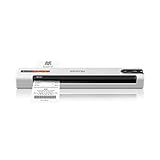
- PORTABLE SCANNER FOR USE ON-THE-GO — The fastest and lightest mobile single-sheet-fed compact document scanner in its class¹
- QUICK DOCUMENT SCANNING ― This Epson ultra-fast scanner scans a single page as quickly as 5.5 seconds²; Windows and Mac compatible
- VERSATILE PAPER HANDLING ― Portable scanner scans documents up to 8.5 x 72 in; Also easily digitizes receipts and ID cards to make accounting, bookkeeping, and organizing simpler
- INTUITIVE, HIGH-SPEED SOFTWARE — Epson ScanSmart Software³ is a smart tool allowing you to easily scan, review, and save; Stay organized easily with the help of this Epson scanner
- EASY SETUP — USB-powered connect to your computer for quick and simple scanning; No batteries or external power supply required to operate portable document scanner; Standard Connectivity: USB 2.0
6. Locate the invoice and supporting reports in myCHEP
CHEP’s myCHEP user guide documents this route for finding an invoice: Financials > View Invoices. Search by issue dates, then download the available PDF or interactive EMC. The guide says EMC files require CHEP Reader. Portal labels and available formats can change, so follow the current portal or your regional instructions if the screen differs.
- Sign in to myCHEP.
- Open Financials > View Invoices.
- Search using the invoice issue-date range.
- Download the invoice as a PDF or interactive EMC, if offered. Use CHEP Reader for EMC files as described in the guide.
CHEP also lists Transaction Activity, Stock Balance, Issue and Return, and Exchange Movements reports in myCHEP. Choose the report that matches the question you are checking—for example, transaction activity for an individual movement or stock balance for equipment on hand. CHEP’s guide is at myCHEP User Guide, and account-management resources are described at CHEP Australia account management.
7. Escalate a discrepancy with the evidence attached
If a difference remains after checking the invoice and supporting records, contact your CHEP account manager or local customer service. Include the invoice number and period, the equipment code or charge line, the amount or movement in question, and the transaction evidence you used to reconcile it. CHEP Australia’s support page directs invoice-format questions to its local account manager or customer service; contact routes differ by country.
Do not assume a universal dispute deadline or a guaranteed adjustment. The public materials cited here do not establish one for all CHEP customers. Your account terms and local CHEP support can clarify the process that applies.
Regional guidance and official resources
CHEP publishes country-specific invoice and portal materials. The Australian invoice explainer is useful for understanding its example’s fields and panels, while Australia/New Zealand materials cover the updated format and the UK has separate invoice and portal guidance. Those regional differences are why the invoice supplied to your own account and its agreed terms should guide reconciliation.
Quick Recap
- CHEP Australia: How to Read Your Invoice
- CHEP Australia: invoice-format information
- CHEP myCHEP User Guide
- CHEP Australia account management
Product prices and availability are accurate as of the date/time indicated and are subject to change. Any price and availability information displayed on Amazon at the time of purchase will apply.




