LinkedIn’s “hiring badge” is officially the #Hiring photo frame, an overlay around your profile photo that connects your profile with a job post. On desktop, go to Me → View profile → Open to → Hiring; in the app, open your profile photo’s frame controls and choose #Hiring. LinkedIn’s documented flow asks you to select an organization and create or choose a job.
What LinkedIn’s #Hiring frame does
The #Hiring frame is a photo overlay, not a verification badge, a hashtag in a post, or the Open to Work setting. When you add it through LinkedIn’s documented hiring flow, you associate your profile with a job at an organization. The frame signals hiring activity to people viewing your profile, and LinkedIn may feature you in that job’s Meet the hiring team section. LinkedIn’s frame instructions and its hiring-team guidance describe these connected functions.
The frame is a public-facing profile signal, but that does not mean every connection will receive a notification. LinkedIn says relevant job seekers in your network may be notified; who sees a notification can depend on factors such as their relationship to you and their job-seeking preferences. Applications and messages to the person who posted or shared a job are handled separately from the frame. LinkedIn explains network notifications; its application privacy guidance covers candidate information.
Add the #Hiring frame on desktop
Use the profile’s Hiring option
- Sign in to LinkedIn and click Me at the top of the page.
- Select View profile.
- Click Open to below your profile photo, then choose Hiring.
- Select the organization connected to the role.
- Choose Create a new job or select an existing job associated with that organization.
- Follow the prompts and select Add to profile to finish.
LinkedIn’s current profile-based instructions use this route: Open to → Hiring. Button names and placement can vary slightly across interface versions.
#1 Best Overall

- 【Rotating Design】The wood picture frames features 360-degree rotation design, allows you to freely adjust the angle of the frame according to your own preferences.
- 【4 x 6 Double-sided Frame】This wooden picture frames can holds two 4 x 6 inch horizontal photos or pictures, one on each side, perfect for showcasing your photos on a mantel, shelf, desk, or any other tabletop area.
- 【Sturdy Construction】The base of the picture frames is crafted from natural walnut wood, known for its strength and longevity. Highly clear acrylic plexiglass has the same transparency as real glass but lighter and safer to use, well protect your photos from dust or damage.
- 【Versatile Applications】The horizontal 4 x 6 picture frame is a versatile and stylish option for displaying family photos, prints, papers and artworks at home/office/coffee shop,etc.
- 【Easy to Use】Just insert your desired pictures into the two acrylic covers, place them into the wooden frame and lock the knob, no tools needed. (Notes: Each sides of acrylic covers are protected with removable stickers, please remove them before use.)
Use the profile-photo frame controls
- Open your profile and click your profile photo.
- Select Frames, then choose #Hiring.
- Click Apply.
- Select the organization, then create a new job or choose an existing one.
- Click Add to profile.
This alternate route is useful if you are already editing your profile photo, but it is not a stand-alone decorative overlay: LinkedIn’s documented steps connect the frame with a job post. See LinkedIn’s profile-photo frame instructions.
Add the frame in the LinkedIn mobile app
- Tap your profile photo, then tap it again to open your profile.
- Tap the profile picture and choose Add frame.
- Select #Hiring, then tap Apply.
- Select the organization and create a job or choose an existing one.
- Tap Next, then Add to profile.
These are LinkedIn’s documented mobile steps; app labels or screen order may differ slightly by version. If the frame control is not where expected, check the desktop route or look for Frames in the profile-photo controls. LinkedIn’s frame guide covers desktop and mobile.
Rank #2
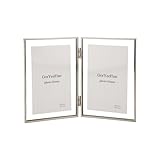
- 【Luxury Floating Viewing Frame 】GorYeeFine 4x6'' silver double picture frame made of a beaded edge and 2 pieces of temperdd glass, making it looks very simple and elegant, with a light luxury style. fit 3.5 x5'' photo has a floating effect on it.
- 【Clear Floating Frames】The outer frame size is 4 x 6 inches, can accommodate up to 4 x 6 inch photo. If you want to present a floating effect, you can leave 1-2 centimeters between the image and the frame to enjoy a fashionable and clear edge for 3.5x5'' as floating frame.
- 【Premium Qaulity】The 4x6'' double metal frame with Thi Beaded edge and electroplating process makes it very durable and anti-corrosion, not easy to damage and odorless.Tempered glass make it safe and anti-dropping.
- 【Easy To Use】To replace a photo, use small provided screw driver to remove the clear silicon stoppers, place the photo on the glass centraly, suggest you use small doubleside sticker to fix your photo on glass. Put glass piece back frame and use the clear stoppers to secury them, Cleaning the glass surface by provided soft cloth can make it bright as new
- 【Perfect Gift】The 3.5x5'' double floating frame is the best chioce for furnishings and decorations in the home. It is a kind of excellent Christmas gift for your friends and relatives on the Festival/Birthday/Wedding. We also offer best customer service for return or replacement if any quality issue.
Choose or create the job to associate with your profile
Use an existing job
Select a job associated with the correct organization. LinkedIn says a member can share up to 10 job posts they did not create; this stated limit concerns jobs posted by someone else. Eligibility can also depend on the member’s relationship to the organization and the job’s status. If the job does not appear, check that it belongs to the selected company and that you are eligible to share it. LinkedIn’s job-sharing instructions describe the organization and sharing requirements.
Create a new job
LinkedIn may ask you for the job title, location, employment type, and an optional description. Its instructions say to choose the title from the suggestions shown as you type; the location may be filled using your current location, which you can change. Some jobs may require review before they can be shared. A free job post must be associated with a company LinkedIn Page, and free-post rules differ from promoted or contract-based listings. LinkedIn’s profile-based flow describes the job details; its free job-post guidance explains free-post conditions.
Quick wins for a faster PC:
Clear out junk files and repair common Windows errorsFree Scan →Fix the driver behind crashes, sound loss and screen glitchesFind Drivers →Rank #3

- Polaroid Frame for i-Type/600/SX-70 Film: WINKINE acrylic frame is specifically designed for Polaroid i-Type/600/SX-70 film, fitting perfectly; It also accommodates 4.25x3.5 inch or smaller photos, offering a flawless fit for your cherished memories
- Polaroid Photo Frame: With V-shaped design allows the frame to stand securely on any flat surface without additional support; Simply place two Polaroid photos in it, the simple and convenient design safely holds and beautifully displays your Polaroid film
- Easy Photo Replacement: These Polaroid frames make loading and changing film a breeze, simply open the back panel at an angle to change the photos; It protects films from damage and deformation, wipe with a dry cloth and it will look like new
- Sturdy Polaroid Picture Frame: These Polaroid frames are made from new 3mm acrylic, expertly crafted with polished edges for durability; The wavy and oval windows are unique in design, each frame holds 2 photos sized 4.2x3.5 inches
- Perfect Gift: Polaroid Frame for Photos are packaged in bubble wrap and a sturdy box to ensure they arrive safely without scratches or damage; They make great gifts for almost any age, and will be a hit on any birthday, anniversary, holiday
Adding a frame does not by itself require you to promote a job. If you choose to create a free post, LinkedIn says it may remain active for up to 14 days before being paused and may close automatically after 30 days if it is not promoted; free-post application limits typically range from 10 to 30, depending on the role. These are rules for free jobs, not a universal duration or application cap for every LinkedIn listing. General or promoted job posts can follow different rules, so check the terms shown in your posting flow. LinkedIn’s free-post rules and its general job-post guidance distinguish these flows.
What happens after you add it
- Your profile photo displays the #Hiring frame.
- Your profile is associated with the selected job and may appear in its Meet the hiring team area.
- LinkedIn may distribute the hiring activity to relevant people in your network; it does not promise a notification to every connection.
- People can also see the frame when they visit your profile.
Sharing a job in a feed post and adding it to your profile are related but distinct actions. LinkedIn’s hiring-team guidance ties profile visibility in the job’s hiring-team area to adding the job to your profile.
Rank #4

- MATERIAL: The frames are made of high quality recyled polystyrene with a nice mahogany wood grain finish, durable and environmentally friendly. Clear high definition glass protect your photos from dust, moisture and scratches, make your pictures great for years.
- SIZE: Made to display 8" x 10" photos with black mat. 1.25" wide and 1" thick molding. Picture opening size 7.5" x 9.5" Frame overall size is 13" x 11" x 1".
- WALL & TABLE DISPLAY: Display on the table with an easel-back or wall mounting with the hanging hardware vertically or horizontally.
- GREAT GIFT: Preserving those wonderful memorial with our fantastic collection of frames. Elegant mahogany with gold beaded design. Turn any bare wall into a gallery of your own with this excellent frame, perfect gift for family and friends.
- SAFE PACKAGING: GraduationMall developed exclusive proprietary packaging that helps ensure safe delivery; Our frames are wrapped with cardboard and foam, packed with box to ensure safe shipping. Order with confidence, click and add to cart today; Feel free to contact us if you have any questions.
If “Hiring” or the right job is missing
- Check your organization connection. LinkedIn generally requires that you work for the organization connected to the job or be a Page super admin. Some organizations may require verification of your work-email domain. See LinkedIn’s eligibility guidance.
- Try the other entry point. If Open to → Hiring is missing, open the profile-photo controls and look for Frames or Add frame. A different interface may expose the same flow there.
- Check the company selection. Confirm the employer is listed correctly in your Experience section and choose the organization’s intended LinkedIn Page, not a similarly named page. Verify any work-email request LinkedIn presents.
- Check the job association and status. A job tied to a different company will not be the right choice for the selected organization. Jobs under review or managed through a corporate contract may follow a different flow.
- Consider the sharing limit. LinkedIn states that members can share up to 10 jobs they did not create. If you have reached that limit, try a job you posted yourself or ask the job owner or organization administrator about eligibility.
- Account for the regional limitation. LinkedIn’s profile-based job-sharing instructions say the feature is not currently available to members in China. See LinkedIn’s regional and account requirements.
- For a corporate job slot, use the relevant workflow. LinkedIn says organizations with Recruiter contracts or purchased job slots may need to post through Recruiter rather than the ordinary Jobs page, profile, or feed flow. See LinkedIn’s job-post guidance.
Share a job without adding the frame
If your aim is to spread the word rather than add a profile signal, LinkedIn also documents a feed-based route: choose Start a post → More → Share that you’re hiring, select the organization, then create or choose a job and post the suggested text. On mobile, look under Post → Share that you’re hiring. This shares hiring activity; add the job to your profile through the #Hiring flow if you also want the frame and profile association. See LinkedIn’s job-sharing steps.
A regular post with a job link is another option when you cannot use the official frame, do not have a suitable company Page, or are not ready to publish a formal listing. It does not provide the #Hiring photo frame or the same hiring-team association. Hiring teams can also invite coworkers to share a job, subject to each employee’s organization and verification eligibility. LinkedIn’s coworker-sharing guidance explains that option.
Recommended Free Tools
Best Value

- 【Suitable for 2 Sizes】One black picture frame come with an extra mat for 5x7 inch photo. It also fits 11x14 inch photo without mat. The easy-open tabs on the back enable you to load your photos, prints quickly. Clear high definition plexiglass protect your photos from dust, moisture and scratches, make your pictures great for years.
- 【Wall or Desktop Display】The pre-installed hanging hardware supports wall display conveniently. Our frame can be also displayed on the desktop with the built in easel. Besides, the attached bubble level and seamless nail make wall hanging much easier.
- 【Material】Durable MDF frame with a UV protection plexiglass front that gives a clear view of your picture and preserves your photographs, cards and memories. Please remove the protection film of both side of plexiglass to get a clear view.
- 【Modern Style】Understated black selected pinewood frame plus neatly cut WHITE mat perfectly match any pieces of photos and prints. It comes with a white beveled mat which your friends and families can sign on it, making your photos in wedding/ graduation/ celebration out of the ordinary.
- 【Packaging】GraduationMall developed exclusive proprietary packaging that helps ensure safe delivery; order with confidence, click and add to cart today.
Remove the frame or its job association
Return to the original photo frame
- Open your profile and click your profile photo.
- Choose Frames.
- Select Original, then click Apply or save the change.
This changes the photo frame. LinkedIn’s steps are in its photo-frame guide.
Remove the job from your profile
- Open your profile and locate the job or hiring item.
- Click its pencil or edit icon.
- Choose Delete from profile and confirm.
Removing the job from your profile removes the profile association and can remove the #Hiring frame, but it does not necessarily close the underlying job post. If hiring has ended, close the job separately in the job-posting controls. LinkedIn describes the profile-removal effect in its hiring-team guidance.
Quick Recap
Product prices and availability are accurate as of the date/time indicated and are subject to change. Any price and availability information displayed on Amazon at the time of purchase will apply.




