Shopify’s built-in 3D scanner can turn a physical product into interactive product media that shoppers can rotate and, on supported devices, preview in their space. It does not create a live configurator: changing a product’s color, components, or price based on selections requires a separate solution. The native scanner is a useful first option if you have a compatible iPhone or iPad and a product that scans well.
What Shopify’s 3D scanner does—and what “dynamic” means
The Shopify mobile app captures multiple views of a physical product, processes them into a 3D model, and lets you inspect the result. You can attach the model to a product’s media or save it as a file. On a compatible storefront and device, a shopper can rotate the model and may be able to view it in their own space using augmented reality (AR). Shopify describes 3D as a complement to product images and other media, not a replacement for them. See Shopify’s 3D scanner instructions and its product media type overview.
That is interactive product media, not a dynamic product builder. The scanner does not make model geometry or materials change when a shopper selects a variant, calculate a customized price, or pass a configured design into an order. Shopify also does not support 3D models or videos as product-variant media, so the native workflow cannot automatically swap a model for each color or size selection. For those requirements, see Shopify’s product media guidance and the configurator section below.
Check device and product compatibility
Shopify’s current documentation lists these compatible devices and operating-system versions. The list may change, so check the live compatibility guidance before planning a scan.
#1 Best Overall

- 【Industrial-Grade Accuracy】Achieve single-frame accuracy up to 0.03 mm and volumetric accuracy of 0.03 mm + 0.05 mm x L(m), faithfully reproducing the finest surface details and complex geometries with exceptional consistency. Full-Field Structured Light accuracy reaches 0.08 mm; VCSEL mode delivers 0.10 mm @ 300-500 mm and 0.20 mm @ 500-800 mm. Engineered to meet the demanding requirements of 3D printing, reverse engineering, and precision modeling applications.
- 【Ultra-Fast Scanning & Robust Frame Rate】Multi-line Laser mode delivers up to 105 fps with NVIDIA GPU acceleration. Full-Field Structured Light mode achieves up to 5,000,000 points/s. The high frame rate ensures a smooth, uninterrupted scanning experience, especially suited for rapidly capturing large objects and complex scenes, significantly boosting overall workflow efficiency.
- 【AI-Powered & Photo-Grade Retopology】 AI object segmentation (Windows only) identifies your target in one click, tracks it throughout the scan, and auto-filters background noise — delivering clean data and streamlining post-processing. The patented 3D Gaussian Splatting converts point cloud and RGB data into true-to-life 1:1 photorealistic models; import photos from your phone or camera to apply real textures, then export in splat format for gaming, animation, and VR.
- 【All-Weather Outdoor Scanning】Multi-line Laser mode operates reliably up to 50,000 lux; with an outdoor filter attached, scanning remains stable in lighting conditions of up to 100,000 lux; VCSEL mode operates reliably in up to 100,000 lux ambient light. Designed to overcome lighting challenges, it provides consistent all-weather performance for construction sites, archaeological digs, and industrial fieldwork.
- 【5 Scanning Modes】NIR band supports Full-Field HD Scanning (markerless, fine structured light), Hybrid HD Scanning (dual projectors, fast high-quality modeling), and VCSEL Rapid Scanning (high-density pattern, fast markerless capture). Blue light band supports 30-Cross Laser Lines Scanning (handles high-reflectivity metals & dark objects) and Single-Line Deep Hole Scanning (captures from deep holes & narrow grooves). Five modes for comprehensive indoor and outdoor coverage.
| Device | Minimum model | Minimum operating system |
|---|---|---|
| iPhone Pro | iPhone 12 Pro or newer | iOS 17 |
| iPhone Pro Max | iPhone 12 Pro Max or newer | iOS 17 |
| iPad Pro | 2021 or newer | iPadOS 17 |
The documented native workflow is for compatible iPhones and iPads. If you use Android, you’ll need a third-party scanner or model-generation workflow and then upload the resulting file.
The object must be at least 3 inches (8 centimeters) long, wide, and high. That is a minimum size for scanning, not a guarantee of a usable model. Shopify says smooth, reflective, transparent or translucent, monochrome, soft or flexible, very thin, hairy, intricate, patterned, or open products can be difficult to capture. Matte, rigid, textured products with visually distinct features are generally better candidates. These material and geometry limits are described in Shopify’s scanner documentation.
Prepare the product and scanning area
- Choose a bright area with soft, diffused light. Avoid direct glare; bounce harsh light off a wall, ceiling, or floor instead of pointing a bare lamp at the product.
- Set the product on a flat, light-colored surface and clear distracting objects from the background.
- Leave room to move completely around the item. Keep the product centered and stationary throughout the scan.
- Check that the product’s shape is stable. If it is soft or flexible, support it in the form you want represented; if it cannot hold a consistent shape, the native scanner may not be a suitable method.
Lighting, stability, and visibility matter because glare, shadows, movement, and hidden surfaces can lead to gaps or distorted geometry. Shopify’s scan preparation advice is especially relevant for products with recessed areas or an underside the camera cannot see from above.
Scan a product in the Shopify app
A typical scan takes about 10–15 minutes, according to Shopify, and uses three scan passes. Keep the app open while the model is being built.
Free tools Windows power users keep installed
One-click scans. No signup required.
Rank #2

- EASY TO USE FOR BEGINNERS – Perfect for entry-level users, DIY creators, and 3D printing enthusiasts. Quick start, with simple practice giving optimal scan results.
- SMOOTH WIRELESS SCANNING – WiFi6-powered Ferret Pro ensures fast, stable scanning. Works with Windows, macOS, Android, and iOS for flexible cross-platform use.
- HIGH-PRECISION 3D MODELS – Capture detailed 3D models with full-color 24-bit scanning and anti-shake technology. Offers up to 0.1mm accuracy with full-color scanning. Ideal for objects from 50mm to 2000mm. Not suitable for very small or highly detailed items like jewelry or precision parts.cccc
- VERSATILE OUTPUT & ENVIRONMENT – Export in OBJ, STL, or PLY. Works reliably in most settings, including outdoor light (<30,000 lux). Avoid reflective, transparent, or very dark surfaces for best results.
- LIGHTWEIGHT & PORTABLE – Weighing just 105g, carry and scan anywhere—home, studio, or on the go. Compact, convenient, and ready for travel.
- Open the Shopify app and tap Products.
- Open the product you want to scan, or tap + to create a product.
- Under Media, tap + or Add images, videos, or 3D models, then tap 3D scanner.
- Follow the on-screen prompts for the three scan passes. Shopify’s scanner suggests a configuration: either flip the product to capture its sides, or leave it in place and scan from high and low angles. Choose the alternative if it better exposes the surfaces the first configuration would miss.
- After the passes are complete, tap Continue to build your model. Keep the Shopify app open until processing finishes.
- Rotate the finished model to inspect it. Use the expand or view-in-space control to preview it in AR if available.
- Tap Add to product, then tap Save to upload it to the product’s media.
For a fragile item, leaving it stationary and scanning from different elevations may be more practical than flipping it. A broad underside that would otherwise remain hidden may make the flip configuration preferable. The app recommends a configuration, but you can choose the other one. See the exact current steps in Shopify’s guide.
Save a model as a file instead
To keep or reuse the model without attaching it to the product you have open:
- In the Shopify app, tap Products, then tap 3D scanner.
- Complete the prompted scan passes and tap Continue to build your model.
- Leave the app open during processing, then inspect the model.
- Tap Save to Files app, choose a folder, and tap Move.
This gives you a file to archive, edit, or upload elsewhere. The steps are documented in Shopify’s scanner instructions.
Review a weak scan and decide whether to retry
Inspect the model before adding it. Check that its silhouette, important surfaces, and commercially important details are represented well enough for a shopper to understand the item. Shopify’s documented controls include resizing the virtual bounding box, resetting a segment, using a manual shutter, and trying the alternate scan configuration. Use this symptom guide to choose a targeted fix rather than repeating the same scan unchanged.
The Tool Desk
Outbyte Driver Updater FREEFix the driver behind crashes, sound loss and screen glitchesFind Drivers →Outbyte PC Repair FREERepair Windows errors before they cause bigger problemsFix Now →Rank #3
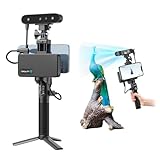
- 【High Accuracy & Fast Scanning】The Creality CR-Scan Ferret Pro 3D scanner delivers up to 0.1mm accuracy, 0.16mm resolution, and 30FPS scanning speed. It captures detailed dimensional data and complex shapes smoothly, creating highly realistic 3D models with ease.
- 【WiFi6 Wireless Transmission】Featuring advanced WiFi6, this handheld 3D scanner offers speeds 3x faster than WiFi5. The high bandwidth ensures stable, efficient data transfer for high-precision scanning and smoother workflow.
- 【Outdoor Scanning & Flexible File Export】Powered by upgraded optical technology and intelligent algorithms, the scanner delivers reliable performance in outdoor environments with ambient light up to 30,000 lux. Export models in OBJ, STL, or PLY formats for seamless integration with 3D printing, design, and reverse engineering workflows. For optimal results, avoid scanning highly reflective, transparent, or extremely dark surfaces.
- 【Anti-Shake Tracking】Equipped with one-shot 3D imaging, the Ferret Pro improves tracking accuracy and scanning success rates. Even with hand movements or quick object shifts, it ensures smooth, error-free scanning—perfect for beginners.
- Ferret Series Performance requirements: Windows: i5-Gen8 CPU or later Windows 10/11 (64-bit), RAM: >8GB, Software: >V2.3.0 Mac OS: M1/M2/M3/M4 series, macOS 11.7.7+ or Intel i5-Gen8+, RAM: >8GB Android: OS: Android 10.0+, RAM: >8GB, Connectivity: Wi-Fi 6, App: V2.0.2 iOS: Model: iPhone 11+, iOS 15+, RAM: >4GB
| What you see | What to try |
|---|---|
| Part of the product is missing | Resize or reposition the virtual bounding box so the entire item fits. Recheck that it is centered. |
| Holes or unfilled areas | Use the manual shutter to capture the affected area, then inspect it again. Reset the segment if needed. |
| Blurry or lumpy surfaces | Move more slowly and smoothly, and improve the lighting to reduce harsh shadows or glare. |
| Floating or detached geometry | Stabilize the product and remove moving objects from the background. |
| Important underside or recessed area is absent | Try the alternate scan configuration or capture the surface from a different angle. |
| Repeated poor results on a glossy or transparent item | Change the lighting to reduce glare. If accuracy matters, consider professional modeling or a specialist workflow instead of repeated scans. |
Shopify identifies highly reflective surfaces as difficult but does not promise that a particular lighting change will solve them. Transparent surfaces, thin parts, large gaps, and flexible materials can also resist reliable reconstruction. Treat these as product-fit issues, not simply operator mistakes; see Shopify’s list of scanning challenges.
Add the model to a product page
After saving, the model is part of the product’s media. Shopify allows up to 250 images, 3D models, or videos per product, subject to plan-specific hosting limits. The first media item is the featured or main media item in places such as collection pages, the cart, checkout, and the home page. Arrange the gallery accordingly, and retain strong still images so shoppers have a useful fallback. Details are in Shopify’s add-media documentation.
Theme support and visibility
Uploading a model and rendering it on the storefront are separate steps. Your theme must support 3D media, or be modified to display it. If the model is saved in admin but missing from the product page, confirm that the product was saved, processing completed, and the product template includes its media gallery. A custom gallery may filter out model media, or a theme-level Liquid or JavaScript change may prevent it from rendering.
For a custom theme, Shopify documents media objects, model sources, and model rendering in its theme product-media guide, its media support documentation, and the Liquid model object reference. A developer can use these resources to check how the product gallery handles model media and AR behavior.
What’s actually slowing this PC down?
Pick the symptom - the matching free tool is one click away.
Rank #4

- AI Visual Tracking
- 0.05mm Accuracy
- 0.10mm Resolution
- Scan ranges from 15mm to 1500mm
- Intelligent Pre and Post Data Processing - JMStudio scanning software integrates scanning, editing, and optimizing into one seamless process.
File formats and size
Shopify accepts 3D models in GLB and USDZ formats and documents a maximum file size of 500 MB. Models larger than 15 MB are automatically optimized. These are upload and processing limits, not performance targets: an accepted model can still be slow on a customer’s mobile connection, and optimization is not a reason to skip storefront testing. See Shopify’s supported media types and limits.
Optimize for the smallest model that preserves the shape, materials, and details shoppers need to assess. Test on actual mobile devices and connections, check that the model’s loading behavior does not overwhelm the gallery, and inspect the result after processing. AR availability also depends on the customer’s device, browser, and storefront implementation; a merchant-side preview does not prove that every shopper will get the same experience.
Choose a tool based on the result you need
| Approach | Best suited to | Main trade-offs |
|---|---|---|
| Shopify’s native scanner | A compatible iOS device, a product likely to scan well, and a need for basic rotation or AR preview with minimal setup. | Limited device compatibility; quality depends on material, shape, and lighting; no native variant-specific models or live customization. |
| Third-party scanning or model-generation app | Android users, photo- or video-based workflows, or merchants who need a separate service for processing, cleanup, or embedding. | App costs and usage terms vary; consider platform dependency, processing, privacy, export rights, and theme compatibility. |
| Professional modeling or visualization service | Reflective, transparent, flexible, or technically complex products, or consistent models for advertising, marketplaces, CAD, AR, or configurators. | Often involves greater upfront cost and turnaround time; confirm the source materials, revision terms, and licensing. |
| 3D product configurator | Customer choices that alter colors, materials, components, dimensions, artwork, or price and must flow into the order. | Requires prepared 3D assets, option and pricing rules, integration, and testing; a scan by itself does not supply that system. |
For a third-party scanning example, 3D Scan & Show: Product Viewer advertises generating models from mobile-device photos or video, with product viewing and AR functionality. Its current price, export terms, device support, privacy terms, and theme requirements should be checked on the live listing before choosing it; those details can change.
Independent reader supportYour contribution helps us test, update, and keep practical guides available for everyone.Make the experience genuinely configurable
If “dynamic” means a shopper can change the product rather than merely rotate it, first define what the selection must do. A color swatch that changes a still image is different from a 3D model that changes materials, updates dimensions, recalculates a price, and records the selection with the order.
Best Value

- HIGH ACCURACY & FASTER: Boasting an impressive accuracy of up to 0.1mm, a resolution of 0.16mm, and a scanning speed of 30FPS, the Creality CR-Scan Ferret SE 3D scanner demonstrates outstanding performance in capturing extensive dimensional data and intricate details to shape highly realistic models smoothly and quickly
- ANTI-SHAKE TACKING: CR-Scan Ferret SE 3D scanner equipped with the new one-shot 3D imaging technology, this advanced feature enhances tracking efficiency and significantly increases the success rate of scans , ensures smooth, error-free scanning results even with shaky hands or rapid movements, ideal for beginners
- COLORFUL & VIVID TEXTURES: The CR Scan Ferret SE color 3D scanner built-in with the 2MP high-resolution color camera, captures intricate details and colored 3D models in their original colors, vividly bringing every intricate detail to life
- FLEXIBLE SCANNING RANGE: Provides a flexible scanning range of 150mm to 2000mm and a single capture range of up to 560*820mm, easily and efficiently handles the scanning of medium to large objects
- SCAN BLACK/METAL OBJECTS WITHOUT SPRAYING: The Ferret SE is optimized for scanning black or metal objects, it doesn't required you to use a white powder or spray to create a contrasting surface for black objects, much easier and faster to help you to finish your work
- Variant-specific appearance: Use suitable images or videos for variant presentation. Shopify does not allow 3D models or videos as product-variant media, so do not assume the native gallery will swap a model automatically.
- Different model per configuration: Separate products may suit genuinely distinct configurations. Theme or metafield logic can alter displayed media, but it does not remove Shopify’s underlying variant-media limitation; test the gallery, selected variant, cart, and order behavior.
- Live choices or pricing: Use a configurator if shoppers need to change materials, colors, components, dimensions, custom text, uploaded artwork, or price. Confirm that its configuration is passed reliably into the cart and order.
- Theme-controlled experience: A Shopify Partner can build a custom media experience using Shopify’s theme media documentation. Theme code can control presentation, but it does not generate models or automatically provide configurator rules.
Zakeke – Customizer 2D & 3D is an example of a Shopify App Store product positioned around customization, 3D configuration, AR, conditional options, uploads, and dynamic pricing. App features, plan limits, transaction fees, and prices can change and may vary by listing context or region; confirm the live listing and terms before selecting a service. It is likely excessive if you only need one or two simple rotatable models.
Troubleshoot the storefront experience
The model is saved but does not appear
- Confirm that you tapped Save after adding it to the product.
- Check that processing finished and the model is present in the product’s media.
- Verify that the published theme supports 3D models and that the product template displays its media gallery.
- If the theme is customized, check whether its gallery filters out model media or has a Liquid or JavaScript issue.
- Test with a supported customer device and browser if the missing part of the experience is AR rather than the model viewer.
The model loads slowly
Check the file’s size, polygon detail, and texture weight, then test over a real mobile connection. The gallery may be loading all media at once, or third-party viewer scripts may be contributing to delay. Shopify’s optimization for models over 15 MB can help, but it does not guarantee fast loading in every theme or network condition. The supported formats and limits are listed in Shopify’s media documentation.
AR does not appear for a shopper
Check the customer’s device and browser support, and verify that the theme’s model media implementation supports the intended AR behavior. Test from the storefront on the kinds of devices your customers use; a successful merchant-side view-in-space preview does not establish universal storefront support. Shopify’s implementation guidance is in its theme media support documentation.
A selected variant does not change the 3D model
This is a platform media limitation, not a failed scan: Shopify does not support 3D models as product-variant media. Use appropriate still imagery, carefully tested custom display logic, separate products where appropriate, or a configurator designed to manage selections and order data. See Shopify’s product media rules.
Outdated Drivers Are Slowing You Down
One free scan finds every outdated or missing driver and matches the right update for your exact hardware.Free scan · exact hardware matchPC Slower Than It Used to Be?
A free scan shows the junk files, broken settings and background clutter dragging Windows down - then fixes them in one click.Free scan · Windows 10 & 11When Shopify’s scanner is the right first try
Start with the native scanner when you have a supported iPhone or iPad, a stable product with a matte or textured surface, and a specific need for a rotatable view or basic AR preview. Prepare the scene carefully, inspect the resulting model before publishing, and test the storefront on mobile. Choose a different scanning workflow when device compatibility or repeated scan quality is the obstacle; choose professional modeling when accuracy or surface complexity matters; and choose a configurator when customers must change the design, price, or orderable specification.
Quick Recap
Product prices and availability are accurate as of the date/time indicated and are subject to change. Any price and availability information displayed on Amazon at the time of purchase will apply.




