Quick wins for a faster PC:
Scan for outdated or missing drivers - takes under a minuteDriver Scan →Clear out junk files and repair common Windows errorsFree Scan →Fix the driver behind crashes, sound loss and screen glitchesFind Drivers →You can test Stripe payments on WordPress without charging a real card: use Stripe test mode or a sandbox, then make a test payment through the integration your site actually uses. The steps differ for a WooCommerce store, a payment form, and a Stripe Payment Link. Test mode is usually configured separately in each plugin, so enabling it in one integration does not switch the others.
Before you test Stripe on WordPress
A test payment should check more than whether a card form accepts a number. You want to verify the whole path: checkout or form, Stripe payment, WordPress record, confirmation, notifications, and any access or fulfillment action. A browser success page alone does not prove that WordPress received and processed the payment event.
- Have the relevant WordPress integration installed and connected to the matching Stripe test account or sandbox.
- Prepare a test product, price, form amount, or Payment Link, and make sure you can access the Stripe Dashboard.
- Use a private, preview, or staging page where possible. Staging is safer for stores with inventory, subscriptions, fulfillment, or CRM automations.
- Use HTTPS, especially on a production site. Have a way to inspect email delivery, plugin logs, and webhook delivery.
- If more than one WordPress plugin uses Stripe, set up test mode in each one separately. WooCommerce maintains separate live and test connections, and WPForms says its test-mode setting does not change other plugins.
Stripe calls its isolated testing environments sandboxes as well as test mode; labels can vary by Dashboard and integration. A sandbox isolates activity from live payments, while the plugin must still be connected to the matching environment. See Stripe’s sandbox documentation and test-mode overview.
Choose the method that matches your WordPress site
| Site setup | Use | Best for | Main limitation |
|---|---|---|---|
| WooCommerce store | WooCommerce Stripe extension | Products, carts, taxes, shipping, inventory, coupons, and orders | More components and checkout behavior to test |
| Payment form | A Stripe-enabled form plugin, such as WPForms | Donations, deposits, registrations, service payments, and simple purchases | Does not necessarily test cart, shipping, or store fulfillment |
| Simple payment button or page | Stripe Payment Link | Fixed-price items, subscriptions, donations, or a quick hosted checkout | Payment records primarily live in Stripe, not a native WordPress order system |
Method 1: Test Stripe payments in WooCommerce
Use this method if customers buy through a WooCommerce cart and you need to test order status, taxes, shipping, stock, downloadable products, subscriptions, or refunds. Menu labels below follow the current WooCommerce documentation and can vary with plugin releases.
Free tools Windows power users keep installed
One-click scans. No signup required.
#1 Best Overall

- Get your money as soon as the next business day.
- Get set up quickly with no long-term commitments. Download the Square Point of Sale app for free, create an account, and start taking payments anywhere.
- Run your business all in one place with the free Square Point of Sale app. Track your sales, manage inventory, accept tips, send receipts digitally, and more.
- Works with Apple devices with a Lightning connector.
- In WordPress, go to WooCommerce → Settings → Payments.
- Select the Stripe payment method and click Manage to open its settings.
- In the account-connection area, select Configure connection, then open the Test tab.
- If no test account is connected, choose Create or connect a test account and complete Stripe’s connection flow. Return to the settings and confirm the test connection.
- Enable test mode and save the settings.
- In a separate browser window, add a product to the cart, proceed to checkout, and pay with a Stripe test card.
- Check that the customer reaches the expected order-received page. Then open WooCommerce → Orders and inspect the order status and payment details.
- Switch to the same test account or sandbox in Stripe and confirm the payment appears there. Match it to the order using the payment or charge identifier where available.
A successful order may be marked completed or processing depending on the product, payment method, capture behavior, and store configuration. Check that the expected customer and admin emails, stock changes, download access, subscription behavior, or fulfillment actions also occurred. The official procedure is in WooCommerce’s Stripe testing guide.
What to test in a store
- Successful card payment, declined card, and a 3D Secure authentication flow.
- Full refunds, and partial refunds if your store uses them.
- Coupon, tax, and shipping calculations.
- Failure after checkout loads, duplicate clicks, and browser refreshes.
- Subscription renewal if recurring payments are enabled.
- Apple Pay, Google Pay, Link, or non-card methods if you offer them. These may need separate device, browser, account, domain, or payment-method setup.
If a payment appears in Stripe but the WooCommerce order remains pending, check webhook delivery, site accessibility, security rules, caching, and the integration log. If an order changes real stock or triggers live fulfillment, stop and move testing to staging or use isolated products and disable external fulfillment.
Method 2: Test Stripe payments with a WordPress payment form
A form is often a better fit than a full store for donations, consultations, deposits, registrations, or one-off service payments. WPForms is one documented example; menu labels and available features differ among plugins, and license or edition requirements can change. Check the plugin’s current documentation for your setup.
Rank #2

- Pay one transparent rate per swipe for Visa, Mastercard, Discover and American Express.
- Works in conjunction with most downloadable Square point-of-sale apps on your device. Customers can pay, tip and sign directly on your device. Track payments in cash, gift cards and more. Also lets you send receipts via e-mail or text message, makes it easy to apply discounts, keeps a data and sales history log and more.
- Accepts magstripe credit card payments, including those from Visa, Mastercard, Discover and American Express (fees apply).
- App sends deposits to your bank account within 1 to 2 business days, or enjoy instant deposits (fees apply).
- Create or edit a payment form and add the needed customer, product, amount, and Stripe payment fields.
- In WordPress, go to WPForms → Settings → Payments. Find Stripe and enable Test Mode.
- Confirm the Stripe connection reports a successful connection, then save.
- Edit the form and confirm Stripe payment processing is enabled. Follow the plugin’s guidance on AJAX submission if it applies to your integration.
- Save the form, then open its preview or place it on a private or staging page.
- Submit the form with a Stripe test card. Confirm the success message or redirect, then inspect the form submission and payment record.
- In WPForms → Payments, select or enable test data if needed. In Stripe, open the matching test environment and verify the payment.
WPForms documents these steps in its Stripe testing guide. Verify the submission, associated payment, payment status, confirmation, configured notifications, and any connected automation. A form entry without a payment record can point to a missing Stripe field, payment feed, webhook, or plugin error. A successful payment with a broken redirect is a separate issue worth testing.
Do these 3 things before closing this tab:
1Repair Windows errors before they cause bigger problems2Scan for outdated or missing drivers - takes under a minute3Clear out junk files and repair common Windows errorsForm scenarios to check
- Fixed amount, user-entered amount, multiple products, and quantities where applicable.
- Required billing details and form validation before payment.
- Confirmation message or redirect, plus admin and customer notifications.
- Declines, 3D Secure authentication, duplicate clicks, and a delayed webhook update.
- Recurring payments or subscriptions if the plugin and your license support them.
If the form works in preview but not on its published page, check caching, JavaScript optimization, content-security settings, blocked scripts, and mixed-content errors. WPForms notes that Stripe does not automatically send payment receipts in test mode, so a missing receipt is not by itself proof the payment failed; verify the test payment record and the notification settings.
Method 3: Test a Stripe Payment Link on WordPress
Use a Payment Link when you want a hosted Stripe checkout behind a WordPress button or link and do not need native WooCommerce order management. Stripe supports one-time and recurring prices through Payment Links. Payment methods displayed can vary by location, currency, amount, browser, device, and account configuration.
Rank #3
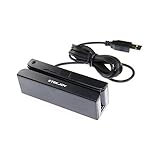
- USB interface, keyboard emulation, no need to install software to read, configuration software for changing settings available.
- Read data from all 3 tracks, high and low coercivity cards, ISO7811, AAMVA, CA DMV and most magnetic card data formats.
- Work on Windows, Mac and other USB capable systems. Work with TXT, notepad, Word, Excel, POS systems and son on.
- Compact size, with 145cm USB cord, two 3mm-diameter screw holes for fixing at the bottom, a LED indicator light
- Perfect for POS, Banking, Loyalty, Access Control, ID verification and other applications.
- Open the Stripe Dashboard and switch to the intended test or sandbox environment.
- Create a test product and price, then create a Payment Link for that price.
- Copy the test link and add it to a WordPress text link, button block, page-builder button, or call-to-action section.
- Open the page as a visitor, follow the link, and complete checkout with a Stripe test card.
- Confirm the hosted checkout reaches its expected success state, then verify the transaction in the same Stripe test environment.
- If payment triggers a download, membership access, or fulfillment, verify that action separately and check the webhook or automation that performs it.
This tests the WordPress link, hosted checkout, and Stripe payment. It does not automatically test WooCommerce cart calculations, WordPress inventory, or form-plugin entries. If your page grants access or fulfills an order, use a verified payment event or status rather than relying only on the customer returning to a success page. Stripe recommends webhooks for fulfillment; some payment methods can take two to fourteen days to confirm. See Stripe’s Payment Link creation documentation.
Keep a test link off public pages or restrict the page during testing. Otherwise visitors may encounter a test checkout, and replacing a test link with a live one later is an easy step to miss.
Stripe test cards and useful scenarios
For an interactive successful card payment, Stripe documents 4242 4242 4242 4242, any valid future expiration date (for example, 12/34), and any acceptable three-digit CVC (four digits for American Express). Use only in test mode or a sandbox; the card number alone does not make a live integration safe.
Rank #4

- Accept all major credit and debit cards for one low rate.
- Accepts Visa, Mastercard, Discover, and American Express—no hidden fees.
- Track your earnings and view your complete sales history from the free Square Point of Sale app.
- Works with Apple and Android devices that have a 3.5 mm headphone jack. No charging needed
For declines, 3D Secure, refunds, disputes, and non-card payment methods, use the current values and procedures in Stripe’s testing documentation rather than relying on a static card-number list. A successful card test does not establish that wallets, bank debits, vouchers, or redirect-based methods work; each may have different requirements.
How to tell whether the test worked
- The integration and Stripe Dashboard are using the same test account or sandbox, and no live payment was made.
- The payment was accepted, declined, or authenticated as intended.
- The expected WooCommerce order, form submission, or Stripe transaction exists and has the correct status.
- The confirmation page or message and configured notifications behave correctly.
- Webhook-dependent actions, such as access or fulfillment, occur after the payment event is processed.
- A refund updates the Stripe record and the corresponding WordPress payment or order record.
Stripe recommends using legitimate sandbox actions and its testing tools to exercise webhook destinations. Inspect delivery attempts, response codes, retries, WordPress logs, and duplicate-event handling. A successful browser redirect is not confirmation that a server-side event was delivered.
Independent reader supportYour contribution helps us test, update, and keep practical guides available for everyone.Common Stripe testing problems and fixes
| Symptom | Likely cause | What to check |
|---|---|---|
| Test card is declined unexpectedly | Mode or account mismatch; plugin is not using test credentials | Confirm the integration’s mode, connection, and matching Stripe test account. |
| Payment appears in Stripe but not WordPress | Webhook delivery or processing problem | Check endpoint accessibility, last delivery attempt, response code, security rules, and plugin logs. |
| No payment appears in Stripe | Dashboard is in a different environment or account | Switch to the same test account or sandbox connected to the WordPress integration. |
| Checkout spins or fails to submit | JavaScript, cache, security, or AJAX conflict | Temporarily disable optimization and inspect browser errors and plugin logs. |
| Wallet button is unavailable | Device, browser, domain, account, or wallet setup requirement | Follow the payment method’s setup instructions and test on a supported device and browser. |
| Test order changes live inventory | Testing against production data | Use staging or isolated products; disable external fulfillment and automations where appropriate. |
| Visitors see a test checkout | Test page or test link is still public | Restrict or remove the test page and replace test links before launch. |
Test mode or staging: which is safer?
Test mode on the live site can confirm the real theme, hosting, and production integrations, and may be convenient for a simple form or link. But test orders can still affect inventory, email sequences, CRM records, membership access, or automations. A staging site reduces those risks and is generally preferable for a complex store, but a private staging URL may be inaccessible to Stripe webhooks or blocked by authentication or firewalls. Staging settings and data can also differ from production, and copied customer data can expose personal information.
Best Value

- MSR90 is a USB emulation keyboard interface that not need any driver or software,USB simply plug and play
- Reads up to 3 tracks of information,can reads ISO7811, AAMVA, CA DMV and most other card data formats
- Threaded inserts for mounting. LED indicator, green light is on when connecting,green light blinks when cards swiped
- Bi-directional swipe reading, superior reading of high jitter, scratched, and worn magstripe cards, reliable for over 1,000,000 card swipes
- Configuration software makes configuration changes easy,works with: Windows OS and Mac OS
Subscriptions and automated tests need extra coverage
A successful first subscription payment does not prove recurring billing works. Test trial endings, renewals, failed renewals, cancellation, payment-method updates, webhook delivery, and access removal after nonpayment. Which steps are available depends on whether billing is managed by WooCommerce, WPForms, another membership plugin, or Stripe Billing.
For automated integration tests, Stripe recommends test PaymentMethods or fixtures rather than hard-coding card numbers in server-side code. Stripe also warns that testing environments have stricter rate limits and should not be used for load testing; see Stripe’s testing guidance.
Switch from test mode to live mode safely
- Disable test mode in each Stripe-enabled WordPress integration you intend to launch.
- Reconnect the integration to the live Stripe account if required, then save and confirm the live connection and webhook status.
- Replace test products, Payment Links, keys, and pages with their live equivalents. Do not leave a public test page or link in place.
- Check that no other Stripe plugin on the site remains in test mode.
- Only make a real-money verification transaction if it is necessary and authorized; account for any resulting fees and refund it if it was solely a verification payment.
WPForms notes that changing from test to live may require reconnecting Stripe and saving settings again. A small real payment is not a substitute for test mode: it can create fees, customer records, receipts, settlement activity, or disputes. Stripe prohibits testing live mode with real payment details.
Quick Recap
Product prices and availability are accurate as of the date/time indicated and are subject to change. Any price and availability information displayed on Amazon at the time of purchase will apply.
What’s actually slowing this PC down?
Pick the symptom - the matching free tool is one click away.




