Most small businesses need a secure computer for each worker, dependable internet, a protected router and Wi-Fi network, power protection, and backups they have actually tested. They do not all need a server, printer, or expensive conference-room system. The financially sound approach is to buy equipment that supports the work and reduces costly downtime, then add specialized hardware only when a real business need justifies its purchase and upkeep.
The essential small-business IT checklist
“Essential” means necessary to operate reliably and securely, not that every business should buy the same devices. A cloud-first business may own little beyond computers and networking equipment, but it still needs security controls, backup planning, and someone responsible for managing them.

| Category | Usually needed? | Practical starting point |
|---|---|---|
| Computers | Yes | A supported, business-appropriate laptop or desktop for each worker who needs one |
| Monitors and peripherals | Usually for desk-based work | Monitor, dock or hub if needed, keyboard, mouse, and headset |
| Internet connection | Yes for most businesses | A connection with enough upload and download capacity, suitable support, and a continuity plan |
| Router or firewall and Wi-Fi | Yes | An updateable gateway with secure Wi-Fi and a separate guest network |
| Switch and Ethernet cabling | Sometimes | Add when wired devices, access points, or expansion require more ports |
| UPS battery backup | Strongly recommended | Protect networking equipment and other devices that need time for a controlled shutdown |
| Backup system | Yes | Automated, protected copies in more than one place, with recovery tests |
| Printer or scanner | Conditional | Buy when paperwork, labels, receipts, or scanning are part of the workflow |
| Phones, tablets, or collaboration equipment | Conditional | Choose for field work, mobile sales, remote meetings, or shared rooms |
| Server or NAS | Conditional | Use only when local storage or an application has a clear business case and an assigned maintainer |
Equipment is only part of the setup. Email, file storage, collaboration, accounting, customer management, identity controls, endpoint protection, and IT support may be delivered through subscriptions or managed services rather than local hardware. The right comparison is total cost and responsibility: purchase price, subscription fees, support, maintenance, replacement, and the likely cost of downtime.
Choose computers for the work and their useful life
For many small businesses, business-class laptops are a flexible default: staff can work at a desk, at home, or on a customer site, and a laptop can move with its user during an office disruption. Desktops can make better financial or operational sense at fixed workstations, especially where upgradeability, repairability, large displays, graphics performance, or continuous desk use matters.
Free tools Windows power users keep installed
One-click scans. No signup required.
#1 Best Overall

- Save Space, Stay Organized: Maximize your limited space with our versatile network cabinet. With a maximum depth of 14.8 inches, it is perfect for retail environments, classrooms, offices, and any place where space is at a premium. It’s designed to keep your setup organized and efficient, making it ideal for tight spots where every inch counts.
- Outstanding Heat Dissipation: Keep your IT equipment cool and running smoothly with our network cabinet! Equipped with strategically placed ventilation vents and top-to-bottom cooling holes, our network cabinet ensures optimal airflow to avoid overheating.
- Tough and Ready for Anything: Built with a solid welded frame, our network cabinet is designed for durability and long-lasting performance. With a wall-mount load capacity of 200 lbs and a free-standing load capacity of 500 lbs, it can handle multiple devices with ease.
- Security is Our Priority: Keep your gear secure and sound with our lockable glass door! Designed for offices and public spaces, it effectively safeguards your gear from unauthorized access, ensuring your valuable equipment and data stay secure.
- Easy Installation Made Effortless: Enjoy a hassle-free setup with our fully adjustable square-hole mounting rails. The top, bottom, and rear panels come with multiple wiring holes, making it a breeze to organize and route your cables neatly.
Match specifications to workload
| Workload | Practical starting point |
|---|---|
| Email, web apps, documents, and point of sale | A current supported computer with an SSD and typically 8–16 GB of memory |
| Heavy multitasking, large spreadsheets, or development | Typically 16–32 GB of memory and a faster processor |
| Design, CAD, video, or data science | Choose graphics and workstation capability to meet the specific application’s requirements |
| Front desk, kiosk, or shared terminal | Prioritize application compatibility, manageability, and security over maximum performance |
These are workload-based guidelines, not universal minimums. Applications, operating-system support, processor generations, warranty terms, ports, and configurations change. Before buying, check that the exact model can run the software the business depends on and will receive security updates.
Pay attention to support and security
“Business-class” is not simply a faster processor. It can mean more suitable warranty and support options, centralized management, security features, and a more predictable path to replacement. Prioritize full-disk encryption support, automatic updates, a manufacturer warranty, adequate battery life, durable construction, and readily available chargers or other replacement parts. Confirm that the model works with the business’s device-management tools and any intended USB-C dock.
A solo, low-risk home business may reasonably use a consumer computer for some tasks. For a device that holds sensitive information or that employees rely on daily, support response, manageability, and the cost of a failure may be more important than the lowest purchase price. Keep a record of purchase date, assigned user, serial number, warranty, operating-system support, and planned replacement; include secure data wiping in the retirement process.
Budget for monitors, docks, and everyday accessories
For desk-based laptop users, an external monitor, keyboard, mouse, and headset can improve day-to-day work more than a modest processor upgrade. One larger display is often simpler and less expensive than two. A USB-C dock can connect charging, displays, Ethernet, and peripherals through one setup, but it is another component that can fail.
Quick wins for a faster PC:
Scan for outdated or missing drivers - takes under a minuteDriver Scan →Clear out junk files and repair common Windows errorsFree Scan →Fix the driver behind crashes, sound loss and screen glitchesFind Drivers →- Check a dock’s supported display resolution, charging wattage, operating-system compatibility, and Ethernet speed against the exact laptop.
- Keep spare chargers and a small set of commonly needed adapters where a lost or failed accessory would interrupt work.
- Label cables and connections, especially at shared desks and network equipment.
- Choose wireless peripherals for convenience with a plan for batteries; wired devices can be simpler for shared stations or settings where battery management is undesirable.
- For shared computers, use individual accounts, automatic screen locking, restricted administrator rights, and a clear process for saving or removing local files.
Build a network around coverage, security, and continuity
Internet is a service, but the modem or gateway, router, firewall, access points, switch, and cabling that connect the business are equipment decisions. Microsoft’s small-business networking guide describes wired, wireless, and hybrid setups and the common roles of routers, switches, adapters, and Ethernet cable. A router is needed when multiple devices share an internet connection; the provider’s supplied equipment should not be assumed to meet every business’s security or coverage needs.
Choose internet service based on upload as well as download needs, support expectations, installation lead time, and reliance on video calls, cloud applications, voice, or point-of-sale systems. Ask whether a static IP is actually required. If a day without internet would stop sales or operations, consider cellular failover or another continuity option; its cost is justified by the likely impact of an outage, not by a blanket rule.
Router, firewall, and Wi-Fi
The network gateway should be updateable and provide routing, firewalling, secure Wi-Fi, and a way to isolate guest traffic. Depending on the business, useful capabilities also include network segmentation, secure remote access, device visibility, configuration backup, and administrator accounts protected by multifactor authentication (MFA). A firewall is one security layer, not a guarantee against phishing, stolen accounts, or compromised computers.
One all-in-one router may be adequate for a one-person home office. Coverage and capacity in a larger or busier space depend on building materials, layout, interference, device count, and use of video or voice—not just advertised square footage or headline speed. A larger office may need multiple access points, a separate gateway, and switching. Use Ethernet for fixed, high-throughput or latency-sensitive devices when practical, and Wi-Fi for mobility and convenience. Neither wired nor wireless is secure by itself; configuration and access controls matter.
Recommended Free Tools
At minimum, follow the Federal Trade Commission’s router and Wi-Fi security guidance:
- Change default administrator credentials and use a unique, strong administrator password.
- Disable remote administration if it is not needed, and remove unused administrator accounts.
- Use WPA3 where required devices support it; otherwise use WPA2-AES.
- Create a separate guest network rather than putting visitors on the business network.
- Keep router and access-point firmware current, restrict management access where feasible, and save a current configuration backup.
- Document who administers the network, how access can be recovered, and the provider and support contact.
When to add a switch and cabling
A switch adds wired ports for desktops, phones, printers, NAS devices, cameras, or access points when the gateway lacks enough. An unmanaged switch is simple for a small, flat network. A managed or smart switch is more useful when the business needs VLANs, monitoring, or separation between users and devices; a Power over Ethernet (PoE) switch can power compatible phones, cameras, and access points over Ethernet.
Rank #3
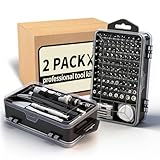
- Multi-Scenario Application: Featuring 101 bits and 21 tools, this kit masters the diverse hardware mix of modern offices. It adapts seamlessly from workstation assembly (RAM/SSD) and server maintenance to repairing scanners, keyboards, and fleet devices. The extensive bit variety ensures compatibility with distinct screw types across different brands and equipment.
- Accelerate Hardware Upgrades: Engineered for department-wide projects like RAM/SSD rollouts, the ergonomic handle minimizes technician fatigue during prolonged operations. The extension rod provides deep access into tower PCs, while the flexible shaft navigates tight spaces in server racks and printers, significantly saving time and effort.
- Industrial Grade Durability: The bits are forged from Cr-V steel and heat-treated to 60 HRC, delivering exceptional hardness and torque resistance ideal for high-frequency professional use. Redundant bits in critical sizes are included to prevent kit obsolescence caused by loss, ensuring operational readiness and maximizing the tool's lifecycle.
- Grab-and-Go Efficiency: Weighing just 1.2 lbs and sized like a book, this 122-in-1 kit integrates bits with essentials like spudgers, tweezers and brushes. It enables true mobility, letting technicians service multiple departments with one lightweight package. Components are securely locked in labeled slots to prevent disorder during transit.
- Dual-Station Workflow: Beyond simple stocking, this setup offers operational flexibility. Keep one set at the fixed workbench and the second in a mobile bag—eliminating repetitive packing for field calls. Alternatively, it instantly equips two technicians, or serves as a backup "donor" kit to replace lost bits, ensuring zero downtime.
Select port count with some growth room, then compare gigabit or multigigabit needs, PoE, uplink speed, noise, mounting, warranty, and power use. Cat 6 can be a practical cable choice, but Microsoft notes the needed cable depends on speed and installation. Connector quality, length, termination, interference, and device capability matter too; label installed cabling so troubleshooting is easier.
Protect critical equipment from short power interruptions
A UPS (uninterruptible power supply) provides short-term battery power and can allow a controlled shutdown during an outage. Consider one for the modem or router, gateway, switch, NAS or server, point-of-sale equipment, VoIP equipment, and a critical workstation. Connecting an access point may help preserve Wi-Fi during a brief interruption if it is powered by the UPS-backed network equipment.
The Tool Desk
Outbyte Driver Updater FREEScan for outdated or missing drivers - takes under a minuteDriver Scan →Outbyte PC Repair FREERepair Windows errors before they cause bigger problemsFix Now →Size a UPS for the actual load and desired runtime, not the number of outlets. Compare wattage and VA capacity, battery-backed outlets, shutdown signaling, replaceable batteries, monitoring, warranty, and automatic voltage regulation. A small UPS can keep networking gear running briefly or give a computer time to save work; it does not provide unlimited runtime, replace offsite backups, or guarantee protection from every electrical event. Include battery replacement in the equipment lifecycle plan.
Make backups recoverable, not just present
Back up the information the business cannot afford to lose: financial and payroll records, customer data, contracts, working documents, databases, website content, email and cloud files, point-of-sale data, and critical device configurations. CISA recommends automated, continuous backups and an isolated or air-gapped copy; its guidance for small and midsize businesses also discusses MFA and other security practices. NIST’s April 14, 2026 draft guidance for non-employer small businesses calls for protecting and testing backups, including keeping a copy on media disconnected from the computer.
Set recovery expectations
- Automate backups and monitor whether jobs succeed.
- Keep multiple copies in more than one location, with at least one copy isolated from ordinary network access.
- Encrypt sensitive backups and decide how recovery keys will be stored and recovered securely.
- Choose retention based on how far back the business may need to recover.
- Test restoring individual files and, where relevant, a full system; document who is responsible.
- Decide how much recent work the business can afford to lose and how long it can operate without restored data. These recovery objectives guide backup frequency and restore arrangements.
Cloud file synchronization, version history, or deleted-file recovery may be useful but does not automatically equal an independent backup. Verify retention, restore granularity, coverage of email and shared drives, account-compromise protections, export capability, and deletion terms. Large restores may depend on internet bandwidth and take time.
Rank #4

- READY-TO-USE IT SOLUTION – Pre-configured server rack cabinet designed for small business and office environments to quickly organize servers, NAS, networking and AV equipment without complex setup.
- ALL-IN-ONE CONFIGURATION – Includes pre-installed PDU, cooling fan, vented shelf, mounting hardware and cable management to eliminate extra purchases and simplify deployment.
- SUPPORTS FULL-DEPTH EQUIPMENT – 35" deep cabinet with up to 31” rail depth fits servers, power backup systems and AV gear that do not fit in standard shallow racks.
- COMPACT, MOBILE & SECURE DESIGN – Rolling floor cabinet with locking casters, tempered glass door and removable panels allows flexible placement while protecting equipment.
- OPTIMIZED FOR OFFICE IT SETUPS – Ideal for structured office networks, small server environments and AV systems requiring clean, organized and low-maintenance installation.
Decide whether local storage is worth maintaining
A NAS (network-attached storage) can make sense for large files, local sharing, or a local backup target. It also requires patching, access control, monitoring, disk replacement, and offsite replication. RAID can improve availability when a disk fails, but it is not a backup; network-connected storage can also be affected by ransomware or administrator compromise. Cloud backup reduces local hardware maintenance and is accessible to distributed teams, but brings recurring fees, provider retention and export limits, internet-dependent restores, and potential recovery delays for large datasets.
For example, Synology’s DS224+ data sheet describes backup-related workloads and compatibility with services including Microsoft 365 and Google Workspace. That is a capability example, not a universal recommendation: a NAS still needs a broader, tested recovery plan.
Buy printers and scanners only for a real workflow
Printing and scanning are conditional needs. They may be important for signed forms, shipping labels, receipts, customer or regulatory paperwork, or frequent document intake. Confirm volume and workflow before buying; an unused multifunction printer still takes money, space, supplies, and support time.
- For frequent text printing where color is unnecessary, a laser printer is often a sensible fit. For occasional, high-quality color or photo output, an inkjet may suit the work, though the purchase price alone does not show long-term running cost.
- For multi-page documents, look for an automatic document feeder and duplex scanning; consider duplex printing when it saves paper.
- Check supply availability and cost, firmware-update support, secure print release, user authentication, and network administration.
- Network printers are computers on the network: change default credentials, patch firmware, restrict administration, and do not expose management interfaces directly to the internet.
Equip mobile and hybrid work appropriately
Remote employees often need a dependable headset, webcam, monitor, and compatible dock rather than a conference-room system. A shared meeting room may justify a speakerphone or dedicated camera and display when several people regularly meet together. Look for clear microphone pickup, noise handling, camera framing, privacy shutter or lens cover, USB compatibility, and compatibility with the chosen collaboration platform.
Phones and tablets are worthwhile for sales, delivery, field service, inventory, mobile point of sale, inspections, signatures, or business photography. Manage business mobile devices with screen locks, encryption, automatic updates, remote wipe, controlled app installation, and a lost-device reporting process. Decide who owns the cellular plan and how personal and business data are separated. The FTC recommends inventorying devices, applications, and data, and encrypting devices and removable media that contain sensitive information.
Best Value

- CUSTOM ASSET LABELS - Upload your logo and personalize the labels with your company or organization name. Enter a prefix and starting number, we will create and sequentially order the barcodes (CODE-128).
- SIZING - Each asset tag measures 2" × 0.7".
- DURABILITY - Our waterproof labels are laminated and designed for both indoor and outdoor use.
- STRONG ADHESIVE - Can be removed without damaging the item.
- MULTIPLE QUANTITIES - Quantities Range from 50 labels to 5000 labels. Choose the perfect quantity of asset tags that suit your needs.
Treat security and IT management as part of the setup
Some essentials are software or services rather than boxes to purchase: a password manager, MFA, full-disk encryption, endpoint protection, patching, device management, and a secure productivity platform. CISA’s small-business resources identify MFA, password management, software updates, logging, backups, and encryption among practical priorities. MFA materially improves account security, but does not replace backups, patching, least privilege, or endpoint protection. Security keys can be especially useful for administrators and employees with access to finance or sensitive information.
Maintain an inventory of devices and software, assigned users, serial numbers, warranties, and replacement plans. Give employees only the access they need, remove access when they leave, and document who can recover administrator accounts. For physical security, consider locks, secure storage for backup drives, and visitor controls where risk warrants them; surveillance cameras and privacy screens are situation-specific, not mandatory for every business.
NIST’s Cybersecurity Framework 2.0 Small Business Quick-Start Guide, published February 26, 2024 as NIST SP 1300, is intended for small and medium-sized businesses with modest or nonexistent cybersecurity programs. It offers a structured starting point for assigning security responsibilities rather than treating equipment purchases as a complete security program.
Stage purchases instead of buying an IT closet on day one
Start with what keeps work secure and recoverable
- A supported computer for each worker who needs one, plus the peripherals required for the job.
- Suitable internet, an updateable router or gateway, secure Wi-Fi, and separate guest access.
- Business email and productivity tools, MFA, a password manager, and endpoint protection.
- Automated backups with an isolated copy, monitoring, and restoration tests.
- A UPS for networking equipment and other devices whose orderly shutdown or short-term continuity matters.
- An equipment inventory and a named person responsible for IT administration and recovery.
Add as staff, devices, and operational risk grow
- Managed switching, more access points, segmentation, and cellular failover.
- Device-management capability, managed IT support, backup monitoring, or security monitoring.
- Local storage where large files, local performance, or a specific application justifies it.
- Dedicated meeting-room equipment when personal devices no longer serve shared meetings.
Purchase only for a defined requirement
A local server, large NAS array, high-end workstation, enterprise firewall, camera system, VoIP handsets, label printer, card reader, industrial tablet, or specialized scanner can all be appropriate. None is a universal marker of a professional business. Identify the workflow or risk it addresses, who will maintain it, and the full cost before committing.
What’s actually slowing this PC down?
Pick the symptom - the matching free tool is one click away.
Example setups by business type
| Business | Likely starting setup | Conditional additions |
|---|---|---|
| One-person home office | Supported laptop, monitor and headset, secure router or well-configured gateway, MFA, endpoint protection, and tested backup | Printer only for regular paperwork; cellular failover if a connection outage stops paid work |
| Five-person professional office | Managed business endpoints, docks and monitors, gateway, Wi-Fi, switch and cabling for fixed devices, UPS, cloud productivity, and protected backups | Managed IT if no employee can own patching, account recovery, and restore tests |
| Retail or point-of-sale business | POS devices, reliable internet, secure network separation, UPS for critical network and sales equipment, and protected transaction data | Receipt or label printers, cellular failover, cameras, or professional network installation based on operations and risk |
| Field-service or trades business | Durable mobile devices or laptops, cellular connectivity, secure access, device enrollment, and a way to protect and recover field records | Vehicle charging, mobile printers, scanners, or rugged tablets when the field workflow requires them |
| Creative or design studio | Workstations sized for the actual applications, suitable displays, fast wired networking where large files move locally, and tested backups | NAS or specialist graphics hardware where workload and support capacity justify them |
| Growing hybrid company | Managed endpoints, cloud identity and collaboration, secure gateway and Wi-Fi, device management, remote-access controls, and protected cloud and endpoint data | Additional access points, segmentation, security monitoring, and an MSP as complexity and downtime costs rise |
Compare buying with subscribing or managed support
Buying hardware can make sense when it is used constantly, local performance or control matters, or a workflow must continue during an internet interruption. A subscription can suit functions that change often, need remote access, or bundle updates and support; the business still needs to understand what the provider secures, retains, and restores. Neither approach is automatically cheaper: count hardware, disks, replacement, maintenance, staff time, recurring fees, migration, and exit costs.
Self-management can work for a very small, cloud-first business when someone has the skills and documented time to manage updates, accounts, inventory, and recovery. Consider an IT provider or managed service provider (MSP) when nobody owns those duties, the business handles sensitive data, multiple locations or remote users create complexity, or a prolonged outage would be costly. Before signing, ask what is monitored, who controls administrator credentials, how backup restoration is tested, what response times apply, and how data and access are returned at contract end.
Quick Recap
Use a buying checklist before approving a purchase
- Need: Which task, risk, or failure does the device address? Can a service or existing equipment do it adequately?
- Compatibility: Does it work with current applications, devices, docks, network speeds, and the business’s management tools?
- Security: Are updates supported? Can data be encrypted? Can administration and access be restricted?
- Support: What warranty and response options apply, and are replacement parts and supplies available?
- Expansion: Is there enough port, capacity, or coverage headroom without paying for enterprise-scale capability prematurely?
- Total cost: Include setup, subscriptions, power, supplies, support, maintenance, replacement, and staff time.
- Continuity: What happens if the device, internet, power, or a user account becomes unavailable?
- Lifecycle: Who owns it, when will it be reviewed or replaced, and how will data be wiped and equipment disposed of or resold?
- Exit: Can the business export its data, recover credentials, and migrate if a vendor or service no longer fits?
Product prices and availability are accurate as of the date/time indicated and are subject to change. Any price and availability information displayed on Amazon at the time of purchase will apply.




