What’s actually slowing this PC down?
Pick the symptom - the matching free tool is one click away.
Some links on this page are affiliate links: if you buy through them we may earn a commission, at no extra cost to you.
Excel shortcuts can turn a monthly budget, debt payoff tracker, investment worksheet, or tax-spending file into a much faster tool. The main list below is for Excel for Microsoft 365 and Excel 2024 on Windows with a US keyboard. Excel for Mac and Excel for the web use several different commands, so those differences are covered separately.
Microsoft does not publish a separate “Excel 2026” shortcut standard. These are the shortcuts currently documented for supported Excel editions in 2026. A plus sign means press the keys together; a comma means press them in sequence.


As an Amazon Associate I earn from qualifying purchases.
File, Ribbon, and general Excel shortcuts
These are useful when opening financial workbooks, saving a revised budget, printing a report, or finding a command without reaching for the mouse.
| Action | Windows shortcut |
|---|---|
| Close workbook | Ctrl+W |
| Open workbook | Ctrl+O |
| Save workbook | Ctrl+S |
| Save As | F12 |
| Ctrl+P | |
| Undo | Ctrl+Z |
| Redo or repeat the last action | Ctrl+Y |
| Open the File menu | Alt+F |
| Open the Home tab | Alt+H |
| Open the Insert tab | Alt+N |
| Open Page Layout | Alt+P |
| Open Formulas | Alt+M |
| Open Data | Alt+A |
| Open Review | Alt+R |
| Open View | Alt+W |
| Open the Search field | Alt+Q |
| Show or hide the Ribbon | Ctrl+F1 |
| Open the context menu | Shift+F10 or the Windows Menu key |
| Open Help | F1 |
| Display Key Tips | Alt or F10 |
Ribbon sequences such as Alt+H, H are entered one after another, not simultaneously. Because Key Tips can change with Excel versions, add-ins, and Ribbon customizations, press Alt and follow the letters displayed on your screen when a command sequence is uncertain.
Popular on Amazon
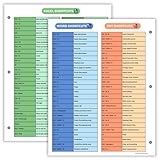
- Excel Shortcuts on the Front — Features a clear layout of commonly used Excel shortcuts organized by function for quick referencing during schoolwork, office tasks, or computer classes.
- PowerPoint & Word Shortcuts on the Back — The reverse side includes essential shortcuts for both PowerPoint and Word, offering a full productivity guide on one laminated sheet.
- Gloss-Laminated for Everyday Durability — Laminated finish helps the page stay in good condition inside binders and folders, even with frequent flipping and study use.
- Sized for All Standard 3-Ring Binders — Pre-punched and printed on 8.5x11 stock so it fits easily into binders used for class notes, office organization, or computer skills study.
- Organized, Easy-to-Read Layout — Designed with clean sections so students and professionals can quickly find shortcuts while working on assignments or projects.
Navigation shortcuts
Navigation commands are especially valuable in long transaction exports or workbooks containing several years of income and expenses.
| Action | Windows shortcut |
|---|---|
| Move to the edge of the current data region | Ctrl+Arrow key |
| Move to the last used cell | Ctrl+End |
| Move to the beginning of the worksheet | Ctrl+Home |
| Extend selection to the last used cell | Ctrl+Shift+End |
| Extend selection to the beginning of the worksheet | Ctrl+Shift+Home |
| Move one screen down | Page Down |
| Move one screen up | Page Up |
| Move one screen right | Alt+Page Down |
| Move one screen left | Alt+Page Up |
| Move to the next worksheet | Ctrl+Page Down |
| Move to the previous worksheet | Ctrl+Page Up |
| Open a data-validation list | Alt+Down Arrow |
| Enter End mode | End |
| Move to the next nonblank cell after End mode | End, then an arrow key |
| Go to a named cell or range | F5 |
| Open the Go To dialog | Ctrl+G |
Ctrl+End does not necessarily select the last cell that visibly contains a value. Excel may consider cells with old data or formatting part of the used range, sending you farther down or to the right than expected.
Free tools Windows power users keep installed
One-click scans. No signup required.
Selection and data-entry shortcuts
Use these when categorizing transactions, filling recurring bills, or selecting a block of figures for a chart or calculation.
| Action | Windows shortcut |
|---|---|
| Select the entire worksheet | Ctrl+A or Ctrl+Shift+Spacebar |
| Select an entire column | Ctrl+Spacebar |
| Select an entire row | Shift+Spacebar |
| Extend selection by one cell | Shift+Arrow key |
| Extend selection to the next nonblank cell | Ctrl+Shift+Arrow key |
| Turn on Extend mode | F8 |
| Add a nonadjacent range to the selection | Shift+F8 |
| Select the current region | Ctrl+Shift+Asterisk (*) |
| Fill selected cells with the current entry | Ctrl+Enter |
| Start a new line inside a cell | Alt+Enter |
| Complete an entry and move down | Enter |
| Complete an entry and move up | Shift+Enter |
| Move to the next cell | Tab |
| Move to the previous cell | Shift+Tab |
| Cancel a cell or formula-bar entry | Esc |
| Select the current and next worksheet | Ctrl+Shift+Page Down |
| Select the current and previous worksheet | Ctrl+Shift+Page Up |
| Select all objects when an object is selected | Ctrl+Shift+Spacebar |
Ctrl+A is context-sensitive. In a data region, pressing it repeatedly can move from the current region to summary rows and eventually the whole worksheet. Check the highlighted area before applying a format or deleting anything.
Also popular on Amazon

- Over 215 Microsoft Windows Excel Shortcuts
- Two-Sided Durable Laminiated Sheet
- Designed for Excel on a Windows Computer
Editing and formatting shortcuts
These commands help clean downloaded bank data, format totals, and make a personal-finance worksheet easier to audit.
| Action | Windows shortcut |
|---|---|
| Edit the active cell | F2 |
| Insert or edit a note | Shift+F2 |
| Insert or reply to a threaded comment | Ctrl+Shift+F2 |
| Open Format Cells | Ctrl+1 |
| Open the Insert Cells dialog | Ctrl+Shift+Plus (+) |
| Open the Delete Cells dialog | Ctrl+Minus (-) |
| Copy | Ctrl+C |
| Cut | Ctrl+X |
| Paste | Ctrl+V |
| Paste Special | Ctrl+Alt+V |
| Bold | Ctrl+B |
| Italic | Ctrl+I |
| Underline | Ctrl+U |
| Strikethrough | Ctrl+5 |
| Fill Down | Ctrl+D |
| Enter the current date | Ctrl+Semicolon (;) |
| Enter the current time | Ctrl+Shift+Colon (:) |
| Show or hide formulas | Ctrl+Grave accent (`) |
| Apply an outline border | Ctrl+Shift+Ampersand (&) |
| Remove an outline border | Ctrl+Shift+Underscore (_) |
| Hide selected rows | Ctrl+9 |
| Hide selected columns | Ctrl+0 |
Pressing Delete only clears cell contents. It does not remove formatting, notes, or threaded comments. To delete cells, rows, or columns and shift surrounding data, use Ctrl+Minus and choose the appropriate option.
Formula, calculation, chart, and data shortcuts
These are the high-value commands for forecasting cash flow, reconciling totals, and testing whether a workbook recalculates correctly.
| Action | Windows shortcut |
|---|---|
| Insert AutoSum | Alt+Equal sign (=) |
| Insert a function | Shift+F3 |
| Toggle relative, absolute, and mixed references while editing a formula | F4 |
| Show the Function Arguments dialog | Ctrl+A immediately after a function name |
| Insert argument names and parentheses | Ctrl+Shift+A |
| Flash Fill | Ctrl+E |
| Calculate all worksheets in open workbooks | F9 |
| Calculate the active worksheet | Shift+F9 |
| Force a full calculation | Ctrl+Alt+F9 |
| Recheck dependencies and force a full calculation | Ctrl+Alt+Shift+F9 |
| Create an embedded chart | Alt+F1 |
| Create a chart sheet | F11 |
| Define a name | Alt+M, M, D |
| Paste a defined name | F3 |
| Open the Macro dialog | Alt+F8 |
| Open the Visual Basic Editor | Alt+F11 |
F4 has two meanings. While editing a formula reference, it cycles through references such as A1, $A$1, A$1, and $A1. Outside formula editing, it repeats the last command when that command supports repetition. Likewise, Ctrl+Y may redo an action or repeat the previous action; it is not guaranteed to behave as a conventional redo button after every command.
Also popular on Amazon
Mac shortcuts and differences
Do not assume that replacing every Windows Ctrl with Command will work. Microsoft says many Windows shortcuts work with Control on a Mac, but not all do. These common alternatives are documented for Excel on Mac:
| Action | Mac shortcut |
|---|---|
| Copy | Cmd+C or Ctrl+C |
| Paste | Cmd+V or Ctrl+V |
| Save | Cmd+S or Ctrl+S |
| Undo | Cmd+Z or Ctrl+Z |
| Redo | Cmd+Y, Ctrl+Y, or Cmd+Shift+Z |
| Format Cells | Cmd+1 or Ctrl+1 |
| Paste Special | Cmd+Ctrl+V, Ctrl+Option+V, or Cmd+Option+V |
| Go To | Ctrl+G or F5 |
| Find | Cmd+F |
| Replace | Ctrl+H or Cmd+Shift+H |
| New workbook | Cmd+N or Ctrl+N |
| Fill Down | Cmd+D or Ctrl+D |
| Fill Right | Cmd+R or Ctrl+R |
| Add or remove a filter | Cmd+Shift+F or Ctrl+Shift+L |
| Open Power Query Editor | Option+F12 |
| Open Visual Basic | Option+F11 |
On some Mac keyboards, function keys perform hardware controls unless you hold Fn. To change their behavior, open Apple menu > System Settings > Keyboard > Keyboard Shortcuts. Scroll Lock can also prevent arrow keys from moving between cells. If the worksheet scrolls instead, turn Scroll Lock off, which may require an external keyboard or a model-specific keyboard method.
The Tool Desk
Outbyte PC Repair FREEClear out junk files and repair common Windows errorsFree Scan →Outbyte Driver Updater FREEScan for outdated or missing drivers - takes under a minuteDriver Scan →Excel for the web shortcuts
Excel for the web runs inside a browser, so desktop shortcuts cannot be copied across without checking them. Browser commands may intercept keys, and Web Ribbon access keys use a different prefix.
| Action | Excel for the web |
|---|---|
| Move between major interface areas | Ctrl+F6 |
| Open Search | Alt+Windows logo key, Q |
| Open Go To | Ctrl+G |
| Save As | Alt+F2 |
| Insert a chart | Alt+F1 |
| Toggle AutoFilter | Ctrl+Shift+L |
| Open the Home Ribbon tab | Alt+Windows logo key, H |
| Switch from Viewing mode to Editing mode | Alt+Windows logo key, Z, M, E |
On a Mac using Excel for the web, begin access keys with Control+Option. F1 and Ctrl+O can be handled by the browser rather than Excel.
Also popular on Amazon
How to override browser shortcuts
- In Excel for the web, select Help > Keyboard Shortcuts.
- Search for a shortcut or select a category.
- Choose Override browser shortcuts.
- Select Show Overrides, then select Close.
This can enable Excel commands that conflict with browser commands, including F1 for Excel Help.
Optional Copilot in Excel shortcuts
These commands apply only where Copilot in Excel is available and enabled. They are not universal Excel shortcuts.
| Action | Windows | Mac |
|---|---|---|
| Open Copilot | Alt+C | Cmd+Ctrl+I |
| Send a prompt | Enter | Return |
| Cancel a request | Esc | Esc |
| Accept Copilot changes | Ctrl+Enter | Cmd+Return |
| Switch between edit, chat, and plan modes | Ctrl+Shift+M | Cmd+Shift+M |
| Navigate between chat responses | Alt+C | Option+C |
| Confirm selected files | Ctrl+J | Cmd+J |
| Start dictation | Alt+Shift+H | Option+Shift+H |
| Move focus between the grid and Copilot pane | F6 | Shift+F6 |
Shortcuts that commonly appear not to work
- Function keys do something else: use Fn or change the laptop or Mac function-key setting. Hardware utilities can intercept F1–F12 before Excel receives them.
- Arrow keys scroll the sheet: Scroll Lock is probably on. Turn it off, particularly on a Mac or external keyboard setup.
- Tab skips unexpected cells: on a protected worksheet, Tab moves between unlocked cells rather than simply moving one cell to the right.
- Ctrl+End jumps too far: old formatting or previously used cells may have expanded Excel’s used range.
- Ctrl+A selects the wrong amount: its result depends on whether the active cell is inside a data region and how many times the shortcut is pressed.
- Delete does not remove the row: it clears contents only. Use Ctrl+Minus for the Delete Cells dialog.
- A macro changes a familiar shortcut: macro assignments can override built-in commands while the macro’s workbook is open. A lowercase macro shortcut uses Ctrl+letter; an uppercase assignment uses Ctrl+Shift+letter. Avoid assigning critical commands such as Ctrl+Z.
- A Ribbon sequence fails: press Alt and follow the Key Tips shown in your edition instead of relying on an old sequence copied from another Excel installation.
A practical starter set for personal-finance work
You do not need to memorize all 92 commands. Start with these 12 for everyday budgeting and tracking:
| Task | Shortcut |
|---|---|
| Save before making a major change | Ctrl+S |
| Undo an accidental edit | Ctrl+Z |
| Jump across a transaction table | Ctrl+Arrow key |
| Find a particular month or merchant | Ctrl+G or F5 |
| Select a complete column | Ctrl+Spacebar |
| Fill a formula downward | Ctrl+D |
| Copy and paste values or formulas | Ctrl+C, then Ctrl+V |
| Open number-format controls | Ctrl+1 |
| Insert a total | Alt+= |
| Lock a reference such as a tax-rate cell | F4 while editing the formula |
| Filter transactions | Ctrl+Shift+L |
| Show formulas for an audit | Ctrl+` |
For the authoritative, edition-specific list, use Microsoft’s Excel keyboard shortcuts reference. It uses a US keyboard layout; punctuation shortcuts may differ on other layouts.
Also popular on Amazon
FAQ
Are these Excel shortcuts new for 2026?
No. Microsoft does not publish a separate Excel 2026 shortcut standard. This is a current-in-2026 guide to shortcuts documented for Excel for Microsoft 365, Excel 2024, and related supported editions.
Do Excel shortcuts work the same on Windows, Mac, and the web?
No. Windows desktop, Mac, and Excel for the web have important differences. Mac does not support a universal “replace Ctrl with Command” rule, and browser shortcuts can intercept commands in Excel for the web.
Outdated Drivers Are Slowing You Down
One free scan finds every outdated or missing driver and matches the right update for your exact hardware.Free scan · exact hardware matchPC Slower Than It Used to Be?
A free scan shows the junk files, broken settings and background clutter dragging Windows down - then fixes them in one click.Free scan · Windows 10 & 11Why does Ctrl+End take me past my actual data?
Ctrl+End moves to Excel’s last used cell, which can include cells containing old data or formatting. Clear unnecessary rows or columns and save the workbook if you need to reduce the used range.
Why does F4 not always repeat my last action?
F4 changes a formula reference between relative, absolute, and mixed forms while you edit a formula. Outside formula editing, it can repeat the last action when that action supports repetition.
The Bottom Line
The best Excel shortcuts for personal-finance work are the ones that reduce repetitive movement and make errors easier to catch: save and undo safely, jump through transaction tables, fill formulas, format amounts, filter records, and show formulas during an audit. Use the Windows list only for the edition and keyboard layout it describes, then check the Mac or web sections before assuming the same keystroke will work.