Some links on this page are affiliate links: if you buy through them we may earn a commission, at no extra cost to you.
Before you hand over an iPhone, back it up, transfer your data, move your cellular service, and erase the device using Apple’s built-in reset. Then confirm it reaches the “Hello” setup screen and that Find My and Activation Lock are no longer attached. This order protects your information without risking a premature wipe or a trade-in delay.
Quick iPhone trade-in checklist
- Back up the old iPhone.
- Transfer data and cellular service to your replacement.
- Verify important information and apps on the new phone.
- Unpair your Apple Watch and check for an unfinished repair.
- Remove the physical SIM, if the phone has one.
- Erase the iPhone and its eSIM through Settings.
- Confirm the “Hello” screen appears and check Find My.
- Photograph the phone, then package or hand it over according to the vendor’s instructions.
Apple’s pre-trade-in instructions say a proper erase removes personal data from the device and turns off Find My and Activation Lock. It does not delete data stored in iCloud. Preparation does not guarantee a trade-in offer or a particular value: eligibility and final valuation depend on the recipient’s rules and inspection.
1. Get ready before you erase anything
Have the replacement phone available, or make a current backup before giving up the old one. Check that you can access your Apple Account and know its password; the erase process or an in-person Apple trade-in may ask you to authenticate. Make sure the old phone can connect to Wi-Fi or cellular service, and have carrier account details ready if you need to move or suspend a line.
If the phone is financed, leased, tied to a carrier promotion, or enrolled by an employer or school, check those terms before trading it in. A trade-in does not automatically settle an installment balance or preserve promotional bill credits. Work- or school-managed devices may need to be released through the organization rather than by a personal reset.
#1 Best Overall
![20W Fast Charger for iPhone 18/17/16/15 with 6FT Cable [3-Pack]](https://m.media-amazon.com/images/I/412godZ67WL._SL160_.jpg)
- [Fast Charger for iPhone 18/17/16/15] You can charge your iPhone 18, 17, 16, and 15 series with this charger kit, which includes 3 USB-C power adapters and 3 USB-C cables. The USB-C charger supports 20W Power Delivery charging, meaning you can charge your iPhone 15, 16 and 17 to 57%, and 18 Pro to 46% in just 30 mins—3x faster than a 5W charger.
- [Also for USB-C iPad Pro/Air/Mini] With USB-C connectors on both ends, this USB-C charger is also perfectly compatible with your iPad that has a USB-C charging port, like iPad Pro (13-in. / 11-in.), iPad Pro 12.9" (6th / 5th / 4th / 3rd Gen) , iPad Pro 11" (4th / 3rd / 2nd / 1st Gen) , iPad Air (5th / 4th Gen / M3 / M2), iPad 10th Gen , iPad A16 , and iPad mini (6th Gen / A17 Pro).
- [Durable Design] This charger block features a solid construction, and the charger cord is lab-tested to withstand 10,000 bends. What's more, the charger cord's USB-C ends have an additional layer of protection to further enhance durability and prevent fraying.
- [Safety First] Conforms to UL and FCC safety standards and is equipped with a wide range of safety features, including temperature control, overvoltage, and overcurrent protection to safeguard your connected device.
- [Wide Compatibility] In addition to charging the iPhone 15, 16, 17 and 18 series and the iPad models mentioned above, this charger can also charge AirPods Pro (2nd generation), Galaxy S26 / S25 / S24 / S24+ / S23 / S23+ / S23 Ultra / S22 / S22+ / S22 Ultra / S21 / S21+ / S21 Ultra / S20 / S20+ / S20 Ultra, Google Pixel 9 / 8 / 8 Pro, and more.
For an online trade-in, save the quote and order details. Before sending the phone, photograph its model, visible condition, and any damage. Record its serial number and IMEI if available; do not publish or share those identifiers unnecessarily.
2. Back up the iPhone
Back up with iCloud
On the old iPhone, open Settings → [your name] → iCloud → iCloud Backup → Back Up Now. Keep the phone connected to Wi-Fi and power as needed, and check the last successful backup time before moving on.
An iCloud backup is not necessarily a complete clone of the phone. Some information syncs separately through iCloud, and some apps, downloads, authentication methods, or device settings may require additional setup. Do not assume that every app session or security credential will transfer.
Windows Errors? Fix Them Before They Spread
Repair common Windows errors and clear accumulated junk for a smoother, more stable PC - no reinstall needed.Free scan · no reinstallOutdated Drivers Are Slowing You Down
One free scan finds every outdated or missing driver and matches the right update for your exact hardware.Free scan · exact hardware matchBack up to a Mac or PC
A computer backup can be useful if iCloud storage is full, internet is slow, or you want a local copy. On a Mac, use Finder; on Windows, use Apple Devices or the Apple software available for your setup. Choose an encrypted backup if you want it to include items such as saved passwords, Health data, and Wi-Fi settings. Even an encrypted backup may not keep every app signed in.
Use temporary transfer storage if offered
Apple may offer temporary iCloud storage as part of an iPhone transfer. Availability and prompts can vary, so follow the transfer options shown on your devices rather than relying on a particular storage amount or time window.
3. Transfer data and verify the new phone
Common routes include iPhone Quick Start, restoring from an iCloud backup, restoring from an encrypted computer backup, or using Apple’s Move to iOS app when switching from Android. Whichever route you use, do not erase the old phone just because setup on the new one has finished.
Rank #2
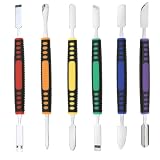
- √ Premium Quality Material - Made of stainless steel, sturdy yet still flexible. Ergonomic silicone handle, non slip.
- √ Excellent For Opening - Open Easily, you just need a little power to disassembly, your screen or cover will be opened.
- √ Great Value - The screen open pry tool kit help to remove the LCD screen from your mobile devices during repairing.
- √ Easy To Carry - Portable pry tools with light weight and compact design, fit in your pocket.
- √ Suitable for - Fit for any touch screen or cover case such as Cell phone,Ipad, Ipod,Tablets, Watch, Laptop, MP3 etc
Check the information and services you rely on before wiping the old device:
Recommended Free Tools
- Open Photos and check both recent and older pictures and videos.
- Search Messages; check Contacts, Notes, Calendar, and Files.
- Confirm passwords and passkeys are available in your password manager.
- Open your authenticator app and make sure you can access the accounts that depend on it.
- Check Health data, Wallet cards and transit passes, and important banking, work, medical, and travel apps.
- Test a call, text, and cellular data connection on the replacement phone.
- Confirm your Apple Watch connects to the replacement phone.
Some apps may require you to sign in again or re-enroll a security method. Keep the old iPhone available until you have confirmed you can access the accounts and information that matter.
4. Unpair your Apple Watch
If an Apple Watch is paired with the old iPhone, unpair it before trading in the phone. Unpairing creates a current watch backup, removes the pairing, and helps prepare the watch to connect to another iPhone. On the old iPhone, open Watch → All Watches → Info button next to the watch → Unpair Apple Watch.
If the watch has its own cellular plan, you may be asked whether to keep or remove it. Choose based on whether you are keeping the watch and whether it will remain on the same carrier plan. Apple lists unpairing as part of its trade-in preparation guidance.
5. Check for an unfinished repair
On supported models, open Settings → General → About → Parts and Service History and look for Finish Repair. Apple says an unfinished repair must be completed before the device can be traded in through its process.
Quick wins for a faster PC:
Clear out junk files and repair common Windows errorsFree Scan →Scan for outdated or missing drivers - takes under a minuteDriver Scan →Repair Windows errors before they cause bigger problemsFix Now →This is different from simply having a repair history: a repaired part or an existing service record is not automatically an unfinished repair. The menu and details shown depend on the model and repair history, and another buyer may apply its own eligibility and valuation rules.
Rank #3

- [Reliable Coverage] Access nationwide high-speed cell phone service using the T-Mobile network including Hawaii, Puerto Rico, and the U.S. Virgin Islands.
- [Unlimited Prepaid Minutes] Call and text without limits.
- [Easy Activation] Activate the SIM card online or by phone and port your current phone number.
- [Unlimited International Calling] Call family and friends in Canada, Japan, and Mexico anytime from the U.S., with no extra fees.
- [Bring Your Own Phone] Compatible with most unlocked senior cell phones, iPhones, Androids, and more. Contact our live support for more information.
6. Move cellular service and handle SIMs
Physical SIM
If the iPhone has a physical SIM, transfer your service to the new phone first. After confirming the new phone can make calls and use cellular data, remove the old SIM. Keep or dispose of it according to your carrier’s instructions; do not include it in the trade-in package unless the recipient specifically asks.
eSIM
eSIM transfer steps vary by carrier, country, iPhone generation, and setup. Confirm service works on the replacement phone before erasing the old one. During the erase process, you may be asked whether to erase the eSIM profile. For a trade-in, erase it once service is transferred or suspended, unless your carrier or the recipient gives you a specific different instruction. Apple’s guidance for selling or trading in an iPhone directs users to erase the eSIM profile when prompted.
If you are uncertain whether the line has moved, pause and contact your carrier before erasing. Leaving a line active on a phone you are surrendering can cause confusion or interrupt activation on the replacement.
Free tools Windows power users keep installed
One-click scans. No signup required.
7. Erase the iPhone the right way
Once the backup and transfer are verified, use the built-in erase control:
- Open Settings → General → Transfer or Reset iPhone.
- Tap Erase All Content and Settings, then Continue.
- Enter the device passcode if asked.
- Enter your Apple Account password if requested. This authentication is part of removing Find My and Activation Lock.
- Review the eSIM choice. For a trade-in, erase the eSIM profile after confirming service works on the replacement.
- Confirm and wait for the iPhone to restart at the setup screen.
Apple says this process removes local content such as photos, contacts, music, apps, and Apple Pay cards, and turns off services including iCloud, iMessage, FaceTime, Find My, and Activation Lock. Content stored in iCloud is not deleted by erasing the phone. Avoid manually deleting synced photos, contacts, or messages while still signed into iCloud; deleting synced items can remove them from other connected devices too.
Do not substitute deleting files one by one, resetting network settings, or using a third-party “cleaner” app. Those actions are not the built-in full erase required for a clean handoff.
Rank #4

- Magnetic Phone Tripod with Metal Ring Phone Clip: This magnetic phone tripod adopts magnetic phone mount, for MagSafe-enabled devices, this phone tripod stand can be quickly and firmly magnetically attach. For non-MagSafe devices, we provide a separate metal ring phone clip which can hold your devices securely and allow seamless attachment for magnetic phone mount, ensuring the universality of cell phones.
- 3-Level-Angle Adjustment For Tripod Legs: Due to the special angle adjustment lock, each tripod leg can be adjusted in its angle individually, allowing the camera tripod stand place on uneven ground. When the tripod legs are spread out almost horizontally, tripod for camera can reach a minimum height(17.72in)for low-angle shooting.
- 74" Extendable Magnetic Tripod & Multi-angle Rotation: Featuring swift clip lock adjustments, this cell phone tripod extends up to 74 inches in height effortlessly and fully adapts to a range of different heights with the locking-pad locked. And use with adjustable 180° pan head and 360° magnetic phone mount, you can make multi-angle shooting easy, for overhead shots, high-angle, low-angle shots and etc.
- Versatile Cold Shoe & Detachable Remote: The bottom cold shoe mount of the magnetic phone mount is allowed to be mounted on cameras and other devices, and side cold shoe mount on the pan head can hold accessories like microphones or LED fill lights securely. What's more, you can take photos or record videos freely within 10 meters with the remote control. And a special remote control slot on the central column is designed for you to store the shutter to prevent loss.
- Powerful Magnetic & Stability: The powerful magnetic force of 4500 Gauss ensures the stable adsorption of your phone and aluminum alloy material makes this tripod for phone sturdy enough to support heavy equipment. When tripod legs are adjusted to 83°, the tripod stand base provides the maximum support area for stability, together with non-slip pads for strong grip, allowing the camera phone tripod perfect for shooting without shaking. (MAX LOAD:3KG/6.6LB)
8. Confirm it is ready to hand over
- The phone displays the initial “Hello” setup screen.
- Your personal data and account are not visible on the device.
- No physical SIM is inside.
- Find My no longer shows the iPhone as an active device requiring removal. If it remains listed, check your Apple Account or Find My settings before handing it over.
- Cases, screen protectors, and personal accessories are removed unless the recipient asks for them.
Erasing correctly is the key step for removing Activation Lock; simply deleting data or signing out incompletely is not enough. If you cannot confirm the erase or account removal, contact the recipient before shipping or surrendering the phone.
What’s actually slowing this PC down?
Pick the symptom - the matching free tool is one click away.
9. Document condition and package it carefully
Wipe the exterior with a soft cloth suitable for the device. Do not apply liquid directly to ports or openings. Take clear photos of the front, back, sides, cameras, ports, screen, and any damage; save the trade-in quote, order number, shipping label, and tracking number. Keep the shipment receipt and tracking details until the recipient confirms inspection and final credit or payment.
For a mail-in trade-in, use the supplied packaging and follow the vendor’s instructions. Do not assume a charger, cable, box, case, or other accessory is required or will raise the offer. Apple’s Trade In program sets its own packaging and credit terms; carriers and other buyers may differ.
Apple Store, Apple online, carrier, or another buyer?
The erase and account-safety steps are broadly the same, but the transaction is not. At an Apple Store, you can hand over the phone in person and may be able to get help, but bring your Apple Account credentials and allow time for inspection. For Apple’s online trade-in, save the shipping records and remember that the final value can depend on inspection.
Carrier promotions may provide bill credits rather than immediate cash or store credit, and may depend on a new line, plan tier, financing, trade-in condition, or credit schedule. A device’s payoff and promotional-credit terms are specific to the carrier or program. Independent buyers can have different grading, payment, shipping, and dispute rules. Compare the actual payment form and conditions—not just the headline estimate—and read the recipient’s current instructions before sending the phone.
Do these 3 things before closing this tab:
1Scan for outdated or missing drivers - takes under a minute2Clear out junk files and repair common Windows errors3Fix the driver behind crashes, sound loss and screen glitchesIf something goes wrong
You forgot your Apple Account password
Recover account access or reset the password before a store visit or shipment. Do not look for a bypass: authentication may be required to erase the phone and remove Activation Lock. If Stolen Device Protection is enabled, changing the password at a store may trigger a one-hour security delay in some circumstances, so handle account changes ahead of time and allow extra time.
Best Value
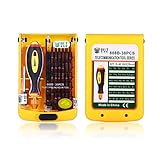
- The size of the screwdriver can be adjusted as your demand.
- The long screwdriver bit can reach narrow place easily,38pcs interchangeable screwdriver set can be used.
- The screwdriver head is processed in high temperature, the bit is black coating, it still works well after using a long time.
- Strong magnetic screwdriver bit, compete specification,high precision screwdriver set
- For almost all cell phone, laptop,computer,mc air/pro, and other electronic repairing.
The phone is already gone
Ask the recipient to erase it if possible. If it is lost or stolen, use Find Devices on iCloud.com to locate or erase it when available, and review your Apple Account’s trusted devices. Change your Apple Account password if you are concerned about account misuse, but understand that changing the password does not erase data from the old phone. If you switched to a non-Apple phone, deregister iMessage so messages can reach the new device. Apple’s sell-or-trade-in guidance covers these recovery steps.
The screen is broken or the phone will not turn on
If the iPhone still works, use the normal erase flow. If it cannot be operated, consult Apple’s official recovery or restore instructions for your situation, and contact Apple or the receiving vendor before shipping it. If it is offline or inaccessible, account-based Find My options may help, depending on connectivity and account access. A broken screen does not make the phone automatically safe to surrender; a recipient may reject or downgrade a device that cannot be tested or cleared of Activation Lock.
“Finish Repair” appears
Complete the repair before trading the device in through Apple’s process. If you cannot, contact the recipient before proceeding; Apple identifies an unfinished repair as a trade-in blocker.
The phone is managed by work or school
Get authorization and follow the organization’s return or release procedure. A personal erase may not remove supervised enrollment, remote management, or organization-level ownership protections.
Cellular service did not transfer
Do not erase the old eSIM or surrender the phone until you have spoken with your carrier and confirmed a working line on the replacement. Carrier steps vary, and removing a profile prematurely can make service recovery more difficult.
Quick Recap
Product prices and availability are accurate as of the date/time indicated and are subject to change. Any price and availability information displayed on Amazon at the time of purchase will apply.



